Text-to-Speech and Transcription
Bring your characters and worlds to life with voice. The plugin provides a seamless two-way audio pipeline, allowing you to convert text into natural-sounding speech (TTS) and transcribe spoken audio back into text (STT) using powerful AI models.
Currently Supported Providers
- OpenAI: Offers a range of high-quality, natural-sounding voices. (Supports Streaming)
- Google Text-to-Speech: Provides a wide variety of voices and language options.
- ElevenLabs: Offers industry-leading, emotionally expressive voices for TTS and transcription. The plugin also supports their new sound effect generation feature (see the Sound Effects page for more). (Supports Streaming)
- Inworld AI: Purpose-built for game characters, Inworld provides high-quality TTS with both standard and real-time streaming endpoints. Models include
inworld-tts-1.5-max,inworld-tts-1.5-mini, andinworld-tts-1. (Supports Streaming)
Available ElevenLabs Voices
To get a list of all available voices and their corresponding IDs from ElevenLabs, use the Get Voices node. For instructions, please refer to the documentation: Dynamically Fetching All ElevenLabs Voices.
Version support:
Please note Audio Streaming only works on plugin versions above v1.5.1.
Mac Shipping Note: For packaged Mac builds, if you run into mic input not being picked up or realtime/API connection failures (for example, connection status 0), copy cacert.pem from <UE_ENGINE_PATH>/Engine/Content/Certificates/ThirdParty into <Project>/Content/Certificates, then add that Certificates folder to both Additional Non-Asset Directories To Package and Additional Non-Asset Directories To Copy in Packaging settings.
1. Text-to-Speech (TTS)
Text-to-Speech allows you to dynamically generate voice lines from any string, perfect for creating expressive NPC dialogue, narration, or accessibility features without needing to pre-record audio files.
Blueprint Implementation (Non Streaming TTS)
The Blueprint workflow is designed to be simple: request the speech, convert the returned data, and play it as a sound.
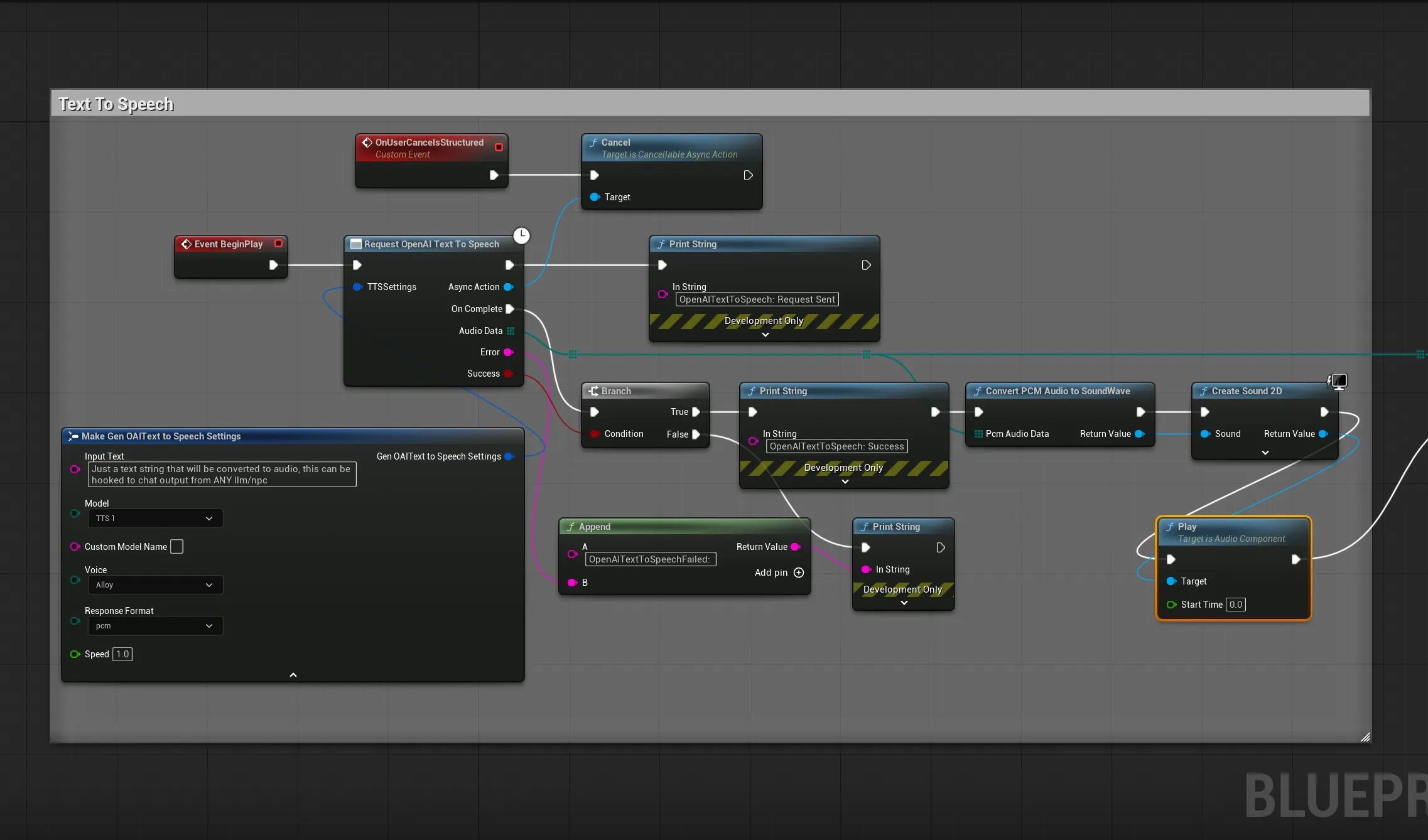
The key nodes are:
- Request OpenAI Text To Speech: This latent node sends the request. Use the
Make Gen OpenAI Text To Speech Settingsnode to configure the voice, model, and input text. - Convert PCM Audio To Sound Wave: A crucial helper node that takes the raw PCM audio data from the API and correctly formats it into a playable
USoundWaveasset. - Create Sound 2D: A standard Unreal node to play the generated sound. It’s good practice to set this to “Auto Destroy” to clean up the sound component after it finishes playing.
C++ Implementation (Non Streaming TTS)
#include "Models/OpenAI/GenOAITextToSpeech.h"
#include "Data/OpenAI/GenOAIAudioStructs.h"
#include "Utilities/GenAIAudioUtils.h" // For the conversion utility
#include "Kismet/GameplayStatics.h"

void AMyActor::SpeakText(const FString& TextToSpeak)
{
    // 1. Configure the TTS request
    FGenOAITextToSpeechSettings TTSSettings;
    TTSSettings.InputText = TextToSpeak;
    TTSSettings.Model = EOpenAITTSModel::TTS_1_HD; // High-definition model
    TTSSettings.Voice = EGenAIVoice::Nova;       // Choose a voice

    // 2. Send the request with a Lambda callback
    UGenOAITextToSpeech::SendTextToSpeechRequest(TTSSettings,
        FOnTTSCompletionResponse::CreateLambda([this](const TArray<uint8>& AudioData, const FString& ErrorMessage, bool bSuccess)
        {
            if (bSuccess && AudioData.Num() > 0)
            {
                // 3. Convert raw PCM data to a playable sound wave
                if (USoundWave* PlayableSound = UGenAIAudioUtils::ConvertPCMAudioToSoundWave(AudioData))
                {
                    // 4. Play the sound in the world
                    UGameplayStatics::PlaySound2D(this, PlayableSound);
                }
            }
        })
    );
}
Blueprint and C++ Streaming TTS Implementaion:
Blueprint Node Setup Example:
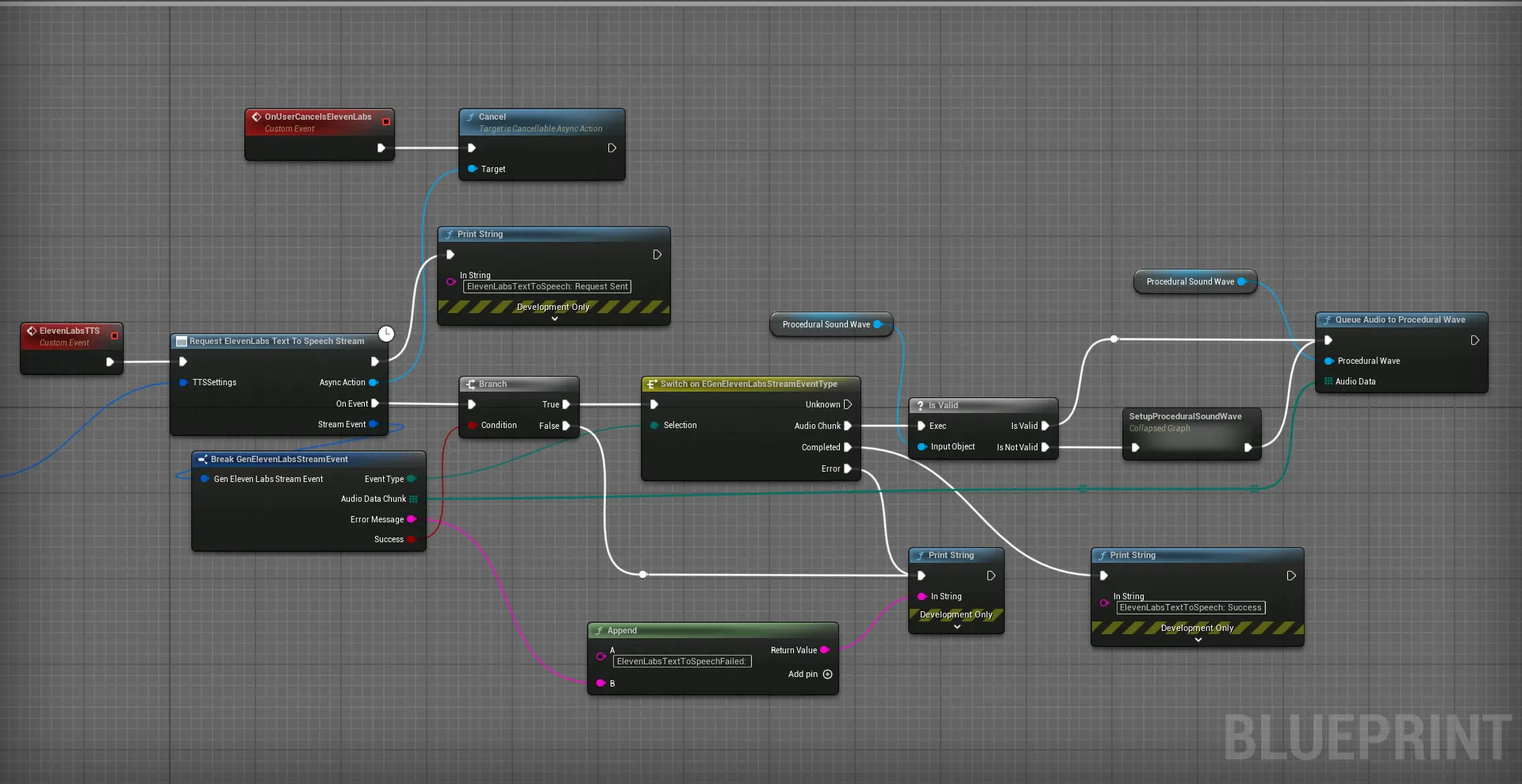
The collapsed graph above that says Setup Procedural Sound Wave looks something like this:

Please refer to the example project for more details, the documentation will be updated here soon.
2. Speech-to-Text (Transcription)
Speech-to-Text allows you to convert spoken audio into text, enabling features like voice commands, player-driven dialogue, or in-game note-taking. The plugin uses OpenAI’s powerful Whisper model for high-accuracy transcriptions.
Blueprint Implementation (Transcription)
The transcription node takes raw audio data and returns a string. You can easily chain TTS and STT nodes together to perform a full round-trip test.
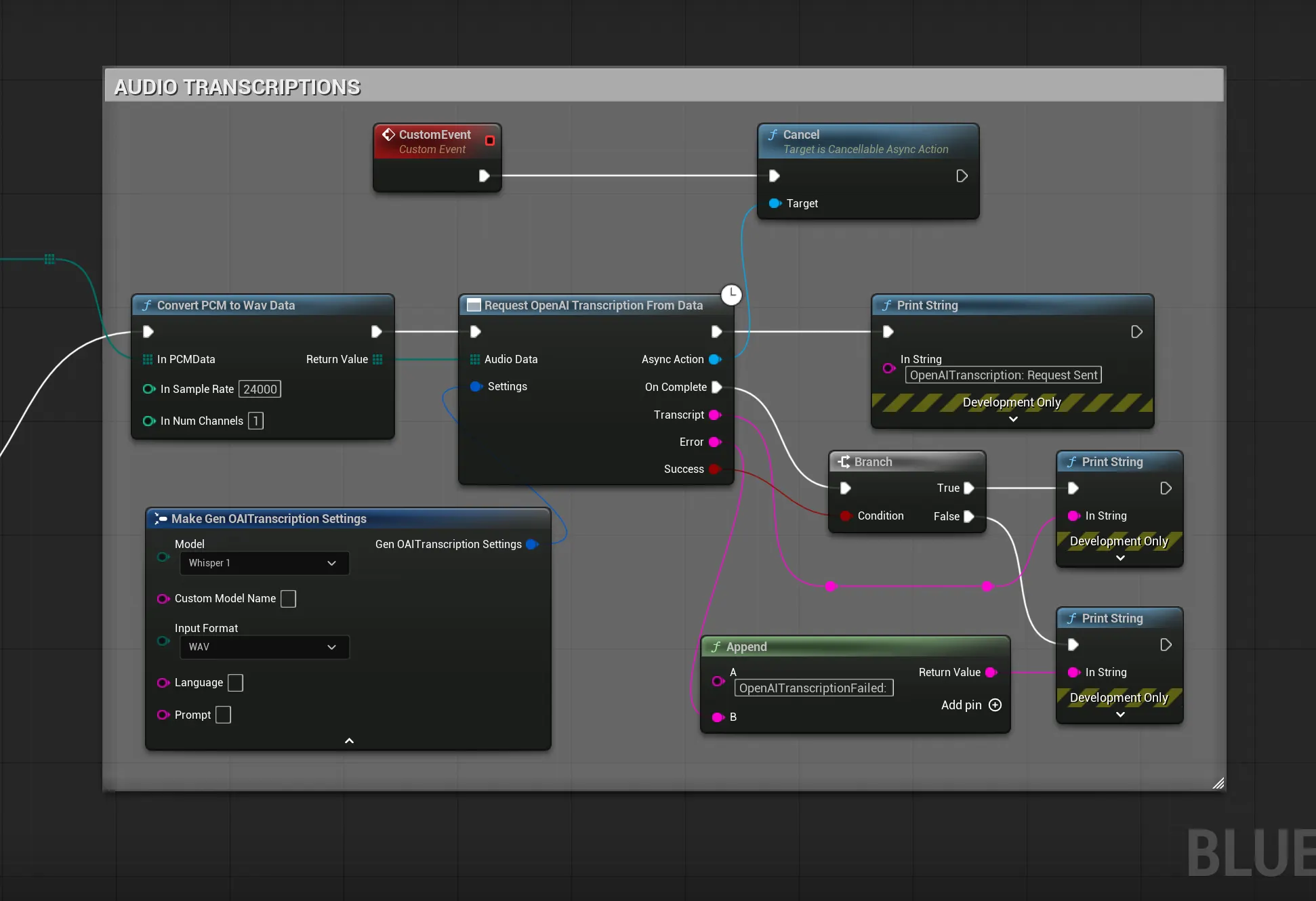
The key node is Request OpenAI Transcription From Data. It takes the raw Audio Data byte array as input and, on completion, provides the Transcript as a string.
C++ Implementation (Transcription)
#include "Models/OpenAI/GenOAITranscription.h"
#include "Data/OpenAI/GenOAIAudioStructs.h"

void AMyActor::TranscribeAudio(const TArray<uint8>& AudioData)
{
    if (AudioData.Num() == 0) return;

    // 1. Configure the transcription request
    FGenOAITranscriptionSettings TranscriptionSettings;
    TranscriptionSettings.Model = EOpenAITranscriptionModel::Whisper_1;
    // Optional: Specify language for better accuracy if known
    TranscriptionSettings.Language = TEXT("en");

    // 2. Send the request from the data buffer
    UGenOAITranscription::SendTranscriptionRequestFromData(AudioData, TranscriptionSettings,
        FOnTranscriptionCompletionResponse::CreateLambda([](const FString& Transcript, const FString& ErrorMessage, bool bSuccess)
        {
            if (bSuccess)
            {
                UE_LOG(LogTemp, Log, TEXT("Transcription successful: '%s'"), *Transcript);
            }
        })
    );
}
3. Audio Helper Utilities (UGenAIAudioUtils)
To simplify audio handling, the plugin includes a powerful set of helper functions available in both C++ and Blueprints. This class, UGenAIAudioUtils, handles the necessary data conversions to get audio into and out of the formats required by AI services.
Here’s a brief overview of the most important functions and when to use them:
- Convert PCM Audio To SoundWave:
- What it does: This is the most essential function for TTS. It takes the raw PCM audio data returned by the AI provider and converts it into a standard, playable
USoundWaveasset. - When to use it: Always use this after a successful TTS request to make the audio playable in your game.
- What it does: This is the most essential function for TTS. It takes the raw PCM audio data returned by the AI provider and converts it into a standard, playable
- Convert Audio To PCM16 Mono 24kHz:
- What it does: Converts audio data into the specific format (16-bit, Mono, 24kHz PCM) that many AI transcription services prefer for optimal results.
- When to use it: Use this before sending recorded audio to a transcription service. For example, if you record the player’s microphone at a standard 48kHz stereo, this function will downsample and convert it correctly.
- Create Empty Procedural Wave & Queue Audio:
- What they do: These functions are designed for audio streaming.
Create...makes an empty, playable sound wave, andQueue...allows you to feed it chunks of audio data as they arrive from a streaming TTS response. - When to use them: Use these together when implementing real-time, streaming voice generation to get gapless, continuous playback.
- What they do: These functions are designed for audio streaming.
- Get SoundWave As Raw PCM Bytes:
- What it does: Extracts the raw audio data from an existing
USoundWaveasset. - When to use it: Useful if you have pre-existing audio assets in your project that you want to send to a transcription service.
- What it does: Extracts the raw audio data from an existing
- Convert Float Array To PCM16 Bytes:
- What it does: Converts a raw float audio buffer (from a capture component) into 16-bit PCM bytes, resampled to 24kHz mono — the format required by realtime AI services.
- When to use it: Use this when converting mic input from the Realtime Audio Capture Component before sending it to the Realtime API or ElevenLabs Agents. Pass the component’s
CaptureNumChannelsandComponentSampleRateproperties to ensure correct mono/stereo handling.
Important: Capture Device Channels
Microphone devices vary — some are mono (1 channel), some are stereo (2 channels). The Realtime Audio Capture Component now exposes a CaptureNumChannels property (BlueprintReadOnly) that reports the actual channel count detected from the input device. Always pass this value to ConvertFloatArrayToPCM16Bytes instead of hardcoding a channel count, otherwise the audio conversion will produce garbled results.
Audio Format Notes
- TTS Output: The plugin currently receives audio from providers in raw PCM format. The
ConvertPCMAudioToSoundWaveutility is essential for making this data playable. - Transcription Input: The transcription nodes accept raw audio data, which should be in a format supported by the provider (e.g., WAV, MP3, M4A). You are responsible for recording or loading audio into a byte array first.