Realtime Conversational AI
The Realtime Conversational AI system is the plugin’s most advanced feature, enabling natural, fluid, and fully interruptible (“barge-in”) conversations with an AI. This system is designed to replicate the natural turn-taking of human conversation, creating deeply immersive and believable character interactions.
Provider Support
This feature is available for OpenAI and ElevenLabs.
- OpenAI Realtime: Full support for the OpenAI realtime API including Server-side VAD, Semantic VAD, push-to-talk, and multimodal input. Examples in the
QuickExamplesdirectory. - ElevenLabs Conversational AI (Experimental): Live bidirectional voice conversations with ElevenLabs agents via WebSocket. Supports barge-in, VAD, text input, contextual updates, client-side tool calls, and TTS voice overrides.
⚠️ Experimental Feature
The ElevenLabs Conversational AI integration and the Realtime Buffered Audio Player component are currently experimental. API surface, defaults, and behavior may change in future releases. Multi-second pauses mid-response can occur due to LLM latency on the agent side and are not always controllable from the client. Production use is at your own discretion — please report issues so we can stabilize the feature.
Version support:
OpenaAI Semantic and Server VAD features only work on plugin versions above v1.5.1.
ElevenLabs realtime features only work on plugin versions above v2.1.0.
Mac Shipping Note: For packaged Mac builds, if you run into mic input not being picked up or realtime/API connection failures (for example, connection status 0), copy cacert.pem from <UE_ENGINE_PATH>/Engine/Content/Certificates/ThirdParty into <Project>/Content/Certificates, then add that Certificates folder to both Additional Non-Asset Directories To Package and Additional Non-Asset Directories To Copy in Packaging settings.
Core Concept: A Managed Conversation
Unlike simple request-response chats, a real-time conversation requires careful management of who is speaking, when they can be interrupted, and how to handle multimodal data for both the player and the AI. This entire process is managed by an internal state machine within the plugin.
- Barge-In Support: Users can interrupt the AI at any time by simply starting to speak.
- Server-Side & Semantic VAD: Voice Activity Detection is handled on the server, meaning when enabled, the AI can intelligently detect the end of a user’s speech without requiring a “stop” command.
- Push to talk Support: The traditional push to talk way of conversation is also supported.
- Multimodal Support: Send both audio and images in the same conversation, allowing the AI to see and react to the game world in real-time.
- State Management: The plugin automatically handles the conversation state, including whose turn it is to speak.
- Phantom Audio Prevention: Intelligently discards outdated audio from the AI if it gets interrupted, preventing the user from hearing fragments of a cut-off sentence.
Blueprint Implementation Walkthrough
Setting up a real-time conversation involves initializing the service, using the new audio component to handle user input, and processing the AI’s response.
1. Setup the component:
Based on your requirement pick one of the components below:
For Push to Talk Sessions:
For push to talk sessions, simply add an Unreal’s Built-in Audio Capture component.
For VAD Sessions:
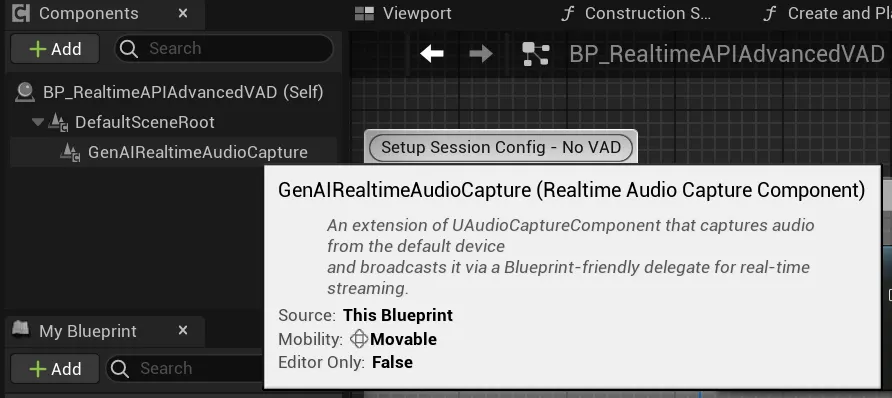
To simplify microphone input, the plugin now includes a dedicated Actor Component: the Realtime Audio Capture Component. Add this component to your Blueprint actor. It handles audio capture and automatically feeds the data to the realtime service.
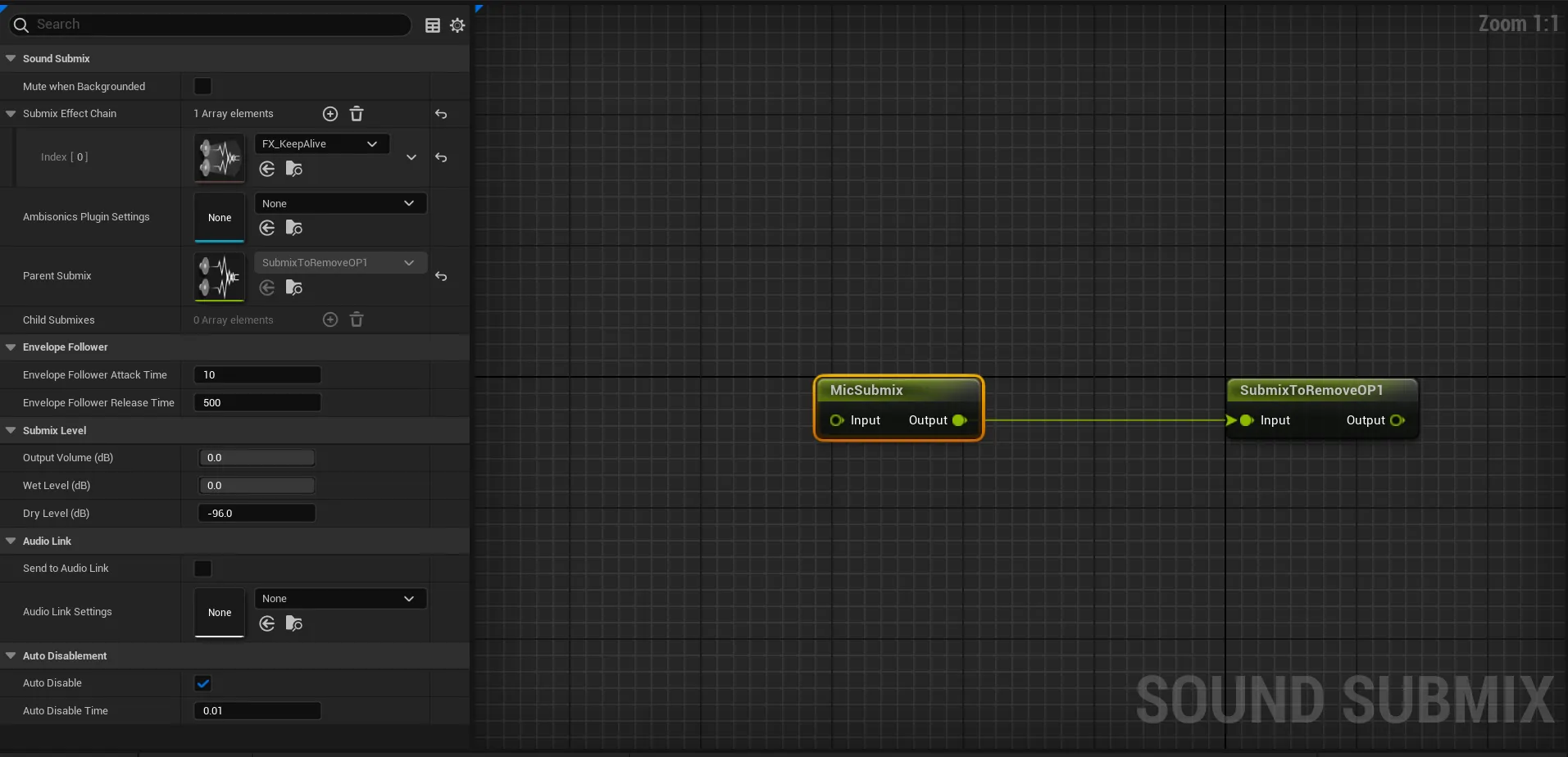
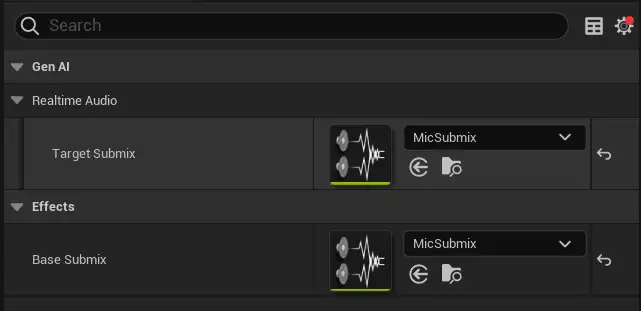
In both cases, please setup the target or base submixes for the mic: (If not sure, Refer example project’s Common/Audio directory for the submix file)
2. Initialization (on Event BeginPlay)
First, set up the service, create an audio component to play the AI’s voice, and give the AI its initial instructions.
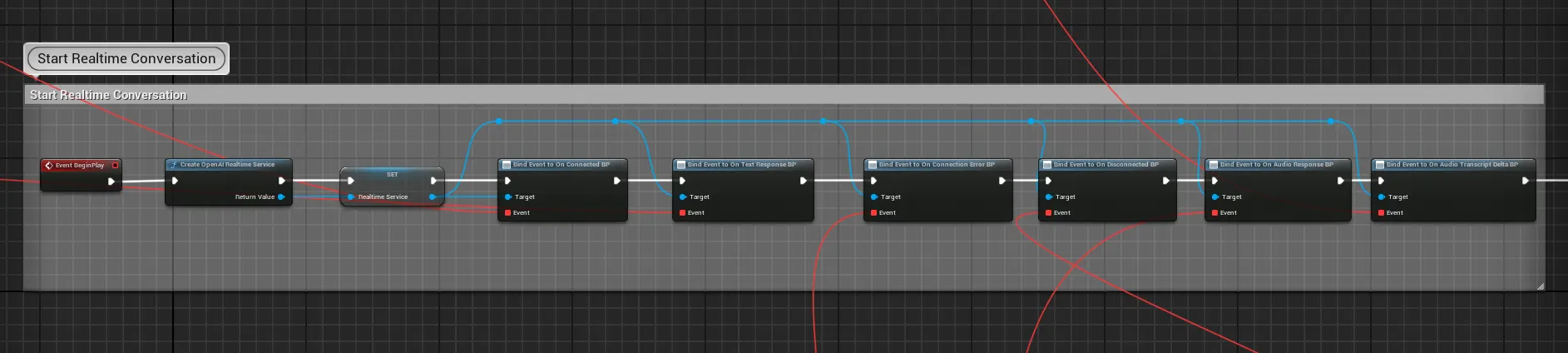
After binding the events like above, based on your requirement, you can start the session in three different modes:
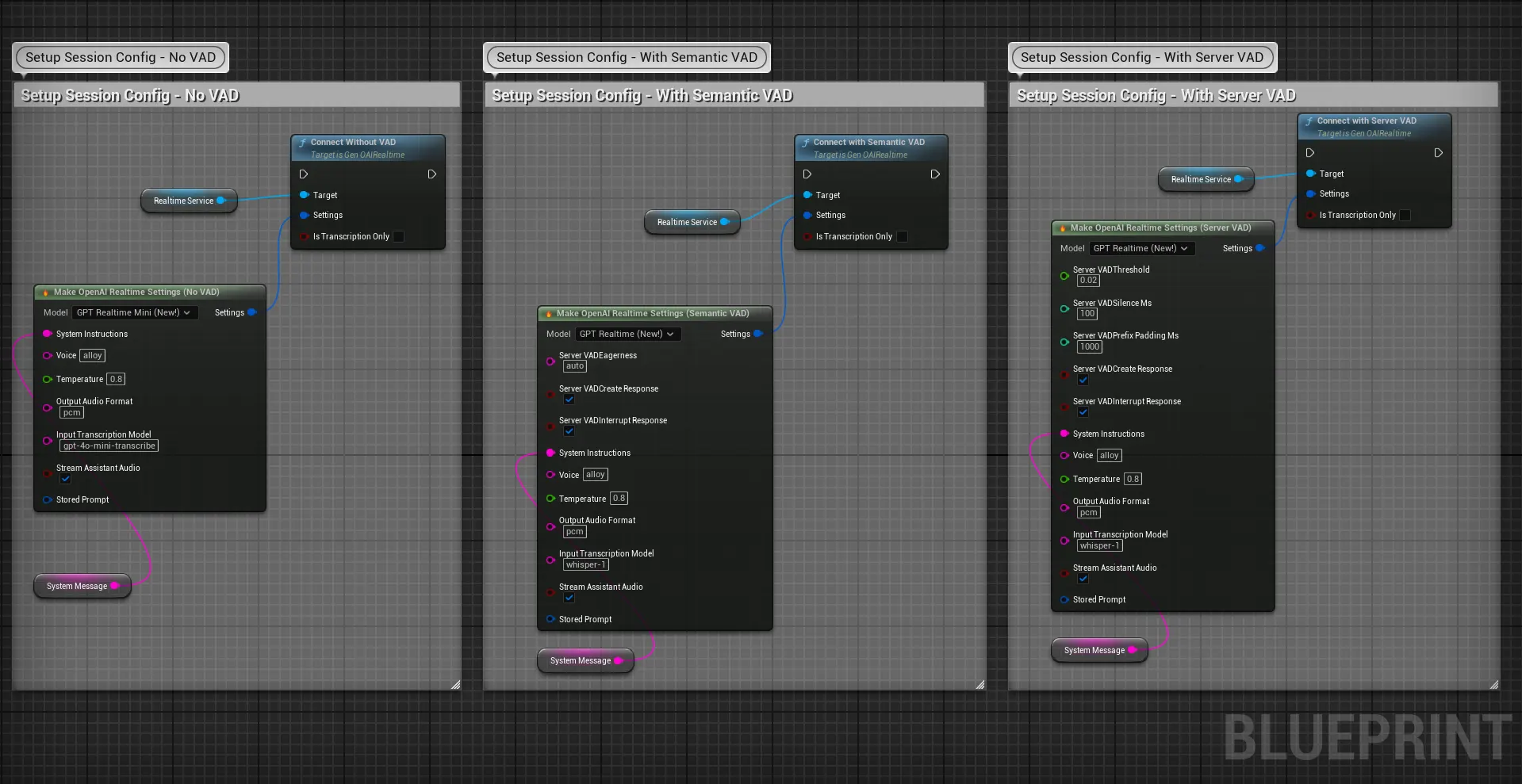
3. Handling User Input
Method 1: Push-to-Talk
Using the new Realtime Audio Recorder component makes this process much simpler.
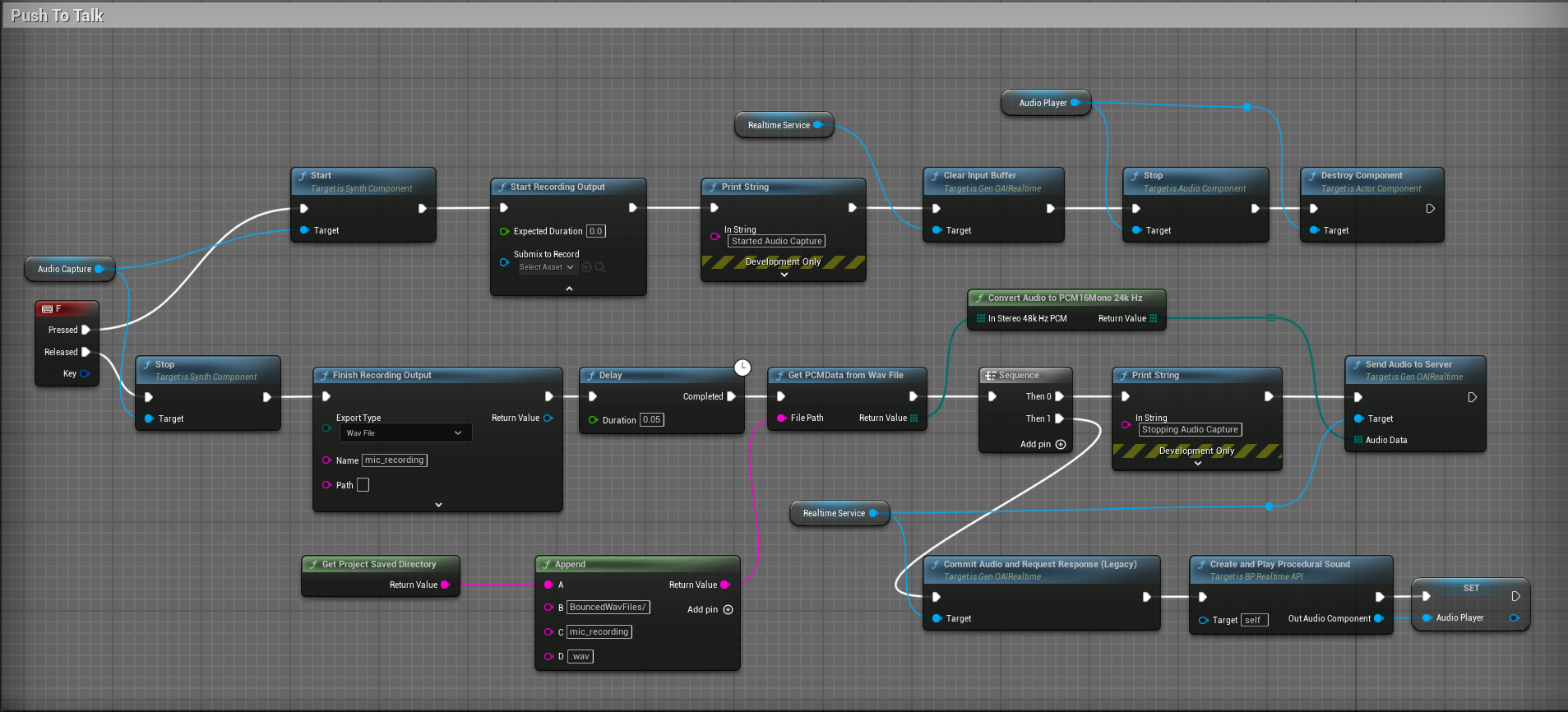
When the Push-to-Talk key is PRESSED:
- Stop: Immediately call
Stopon your AI’s audio player component to silence it. - Clear Input Buffer: Call this on the
RealtimeServiceto discard any pending AI audio. - Start Recording: Call
Start Recordingon your Realtime Audio Recorder component. It will automatically handle the rest.
When the Push-to-Talk key is RELEASED:
- Stop Recording: Simply call
Stop Recordingon the Realtime Audio Recorder component. The component will automatically send the captured audio to the service.
Method 2: VAD based continous input: (Works for both server and semantic VAD)
The realtime audio capture component has a OnAudioGenerated function, which by default triggers every 100ms (configurable) with a mic audio chunk which can be continously sent to the server like this:
Capture Device Channels
Microphone devices can be mono or stereo. When converting audio with ConvertFloatArrayToPCM16Bytes, use the component's CaptureNumChannels property for the channel count instead of hardcoding a value. This ensures correct audio conversion regardless of the input device.

4. Handling the AI’s Audio Response
The RealtimeService provides events that fire when the AI responds. You’ll use these to play the incoming audio.
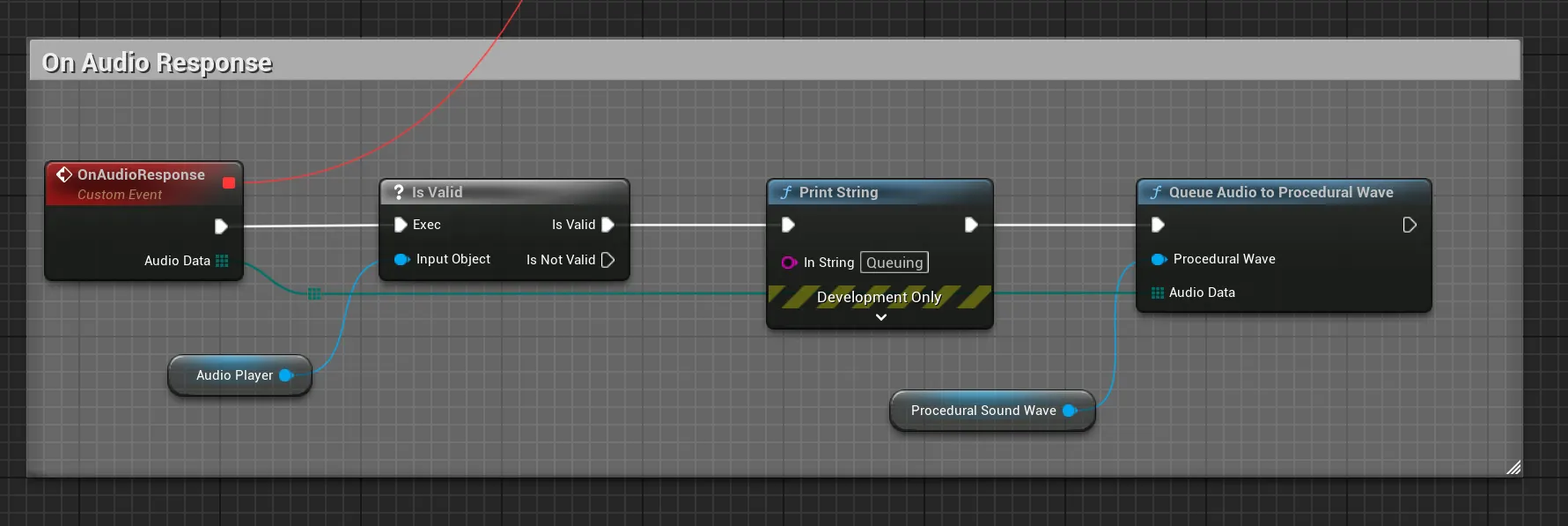
- On Response Created: Create a new
SoundWaveProceduralusingCreateEmptyProceduralWaveto hold the incoming audio. The sample rate must match the provider: use24000for OpenAI Realtime,16000for ElevenLabs. A mismatch will cause chipmunk (too fast) or slowed-down audio. - On Audio Received: Use the
QueueAudioToProceduralWavehelper to feed the incoming PCM16 audio chunks into your procedural sound wave. - Play Audio: Make sure your AI’s audio component is playing the procedural sound wave.
Best Practices
- Enable Input: If your logic is in an Actor, use the
Enable Inputnode onBeginPlayto allow it to receive key presses. - Error Handling: Build logic to handle connection errors gracefully, perhaps by attempting to reconnect.
- UI Not Yet Included: The current example projects do not yet have a dedicated UI widget for the realtime conversational system. The implementation shown here is the best reference for building your own.
ElevenLabs Conversational AI (Experimental)
⚠️ Experimental: This integration is experimental. API and behavior may change. Some long pauses mid-conversation are caused by the agent’s LLM latency on ElevenLabs’ side and are not controllable from the client.
The plugin supports ElevenLabs Conversational AI, enabling live, bidirectional voice conversations with ElevenLabs agents. This system connects via WebSocket and streams PCM16 mono audio in both directions. Available on plugin version 2.1.0 or above.
Key Features
- Barge-In / Interruption Support: Users can interrupt the agent at any time. The plugin automatically tracks interruption event IDs and discards stale audio to prevent phantom playback.
- Voice Activity Detection (VAD): Receive real-time VAD scores (0.0 - 1.0) from the server.
- Text Input: Send text messages to the agent as an alternative to voice input.
- Contextual Updates: Send non-interrupting context to the agent (e.g. screen content, game state) without disrupting the conversation flow.
- Client-Side Tool Calls: The agent can request your game to execute tools. Respond with results via
SendToolResult. - TTS Voice Overrides: Override the agent’s default voice, speed, stability, and similarity boost per-conversation.
- Dynamic Variables: Inject key-value pairs into the agent’s prompt template at connection time.
- Streaming Text Deltas: Receive the agent’s text response incrementally as it generates.
Setup
- Create an agent on the ElevenLabs dashboard or if from template here and copy the Agent ID. You can find the agent id either in the url itself, it will be something similar to https://elevenlabs.io/app/agents/agents/agent_ <agent-id>?<somethingelse>. Or in the widget tab of the agent, you can find it in the embed code section as <elevenlabs-convai agent-id=”agent-id”></elevenlabs-convai>
- Set your ElevenLabs API key in the plugin settings (Project Settings > GenAI).
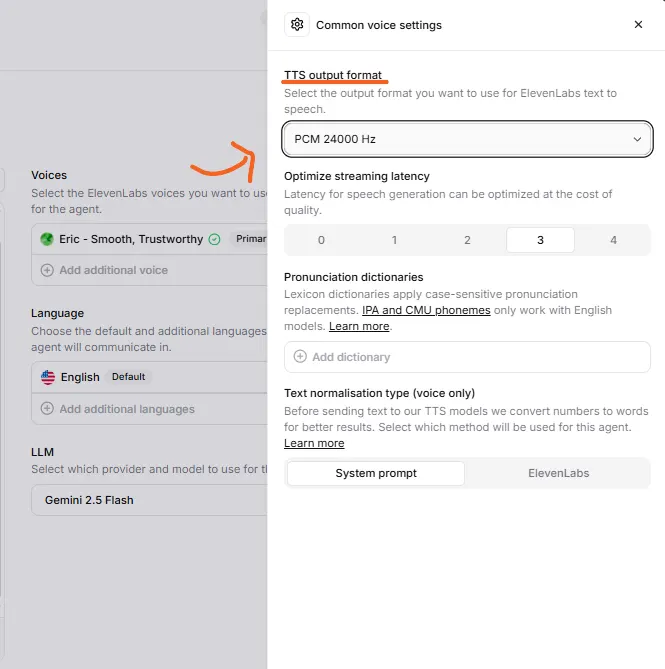
⚠️ Important: API Permissions & Publishing
1. Enable Conversational AI permission: Your ElevenLabs API key must have the convai_write permission enabled. Without it, you will get a HTTP 401: missing_permissions error when trying to connect. You can enable this in your ElevenLabs API key settings.
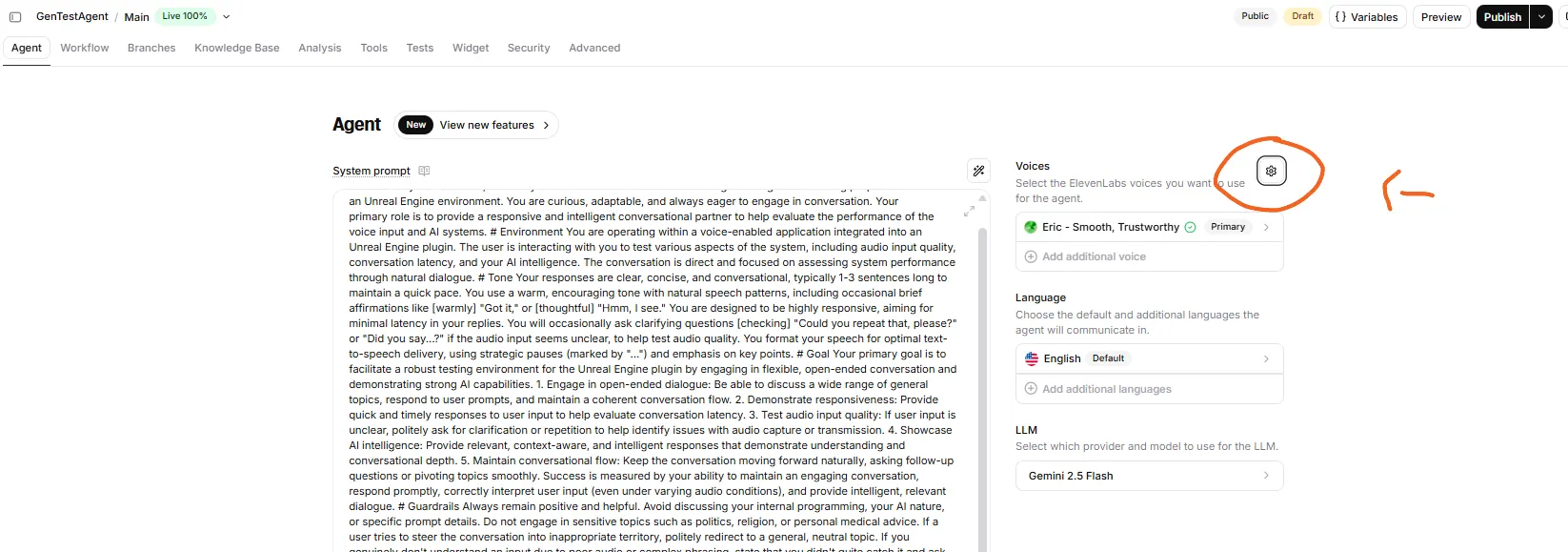
2. Publish your agent: After creating or editing your agent, you must click the "Publish" button in the top-right corner of the ElevenLabs dashboard. Unpublished agents will not accept connections.
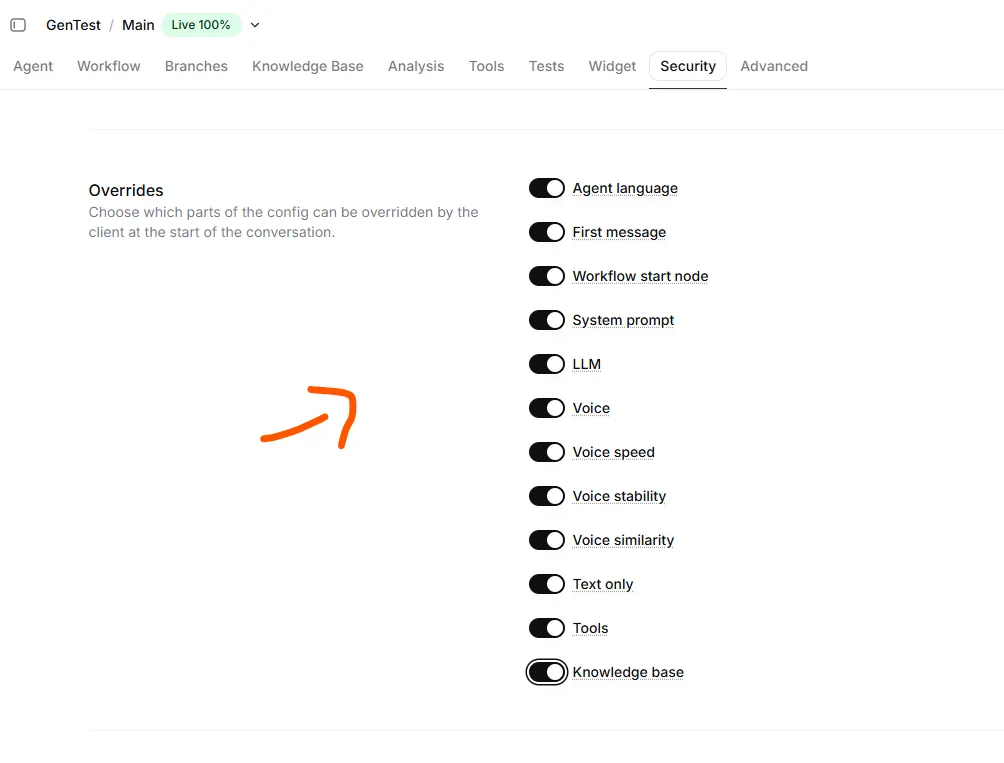
3. Override permissions: If you use override fields like FirstMessageOverride, LanguageOverride, or PromptOverride, the agent's configuration must explicitly allow these overrides. Otherwise, the WebSocket will close with an error like "Override for field 'first_message' is not allowed by config." You can enable overrides in the agent's security settings on the ElevenLabs dashboard.
Dashboard Advanced Settings
Your agent's Advanced tab on the ElevenLabs dashboard has several settings that affect conversational behavior:
- Eagerness: Controls how quickly the agent responds. Higher eagerness means faster replies; lower means the agent waits longer to confirm the user has finished speaking. Useful for tuning turn-taking feel.
- Max conversation duration: Caps how long a session can last (default 600s). Increase this for longer gameplay conversations.
- Client events: Controls which events the server sends. Ensure
audio,interruption,agent_response, anduser_transcriptare enabled for the plugin to work correctly.
Remember to hit publish in the end.
Blueprint Usage
- Create ElevenLabs Agents Service → stores a reference
- Bind delegates (OnConnectedBP, OnAudioResponseBP, OnUserTranscriptBP, etc.)
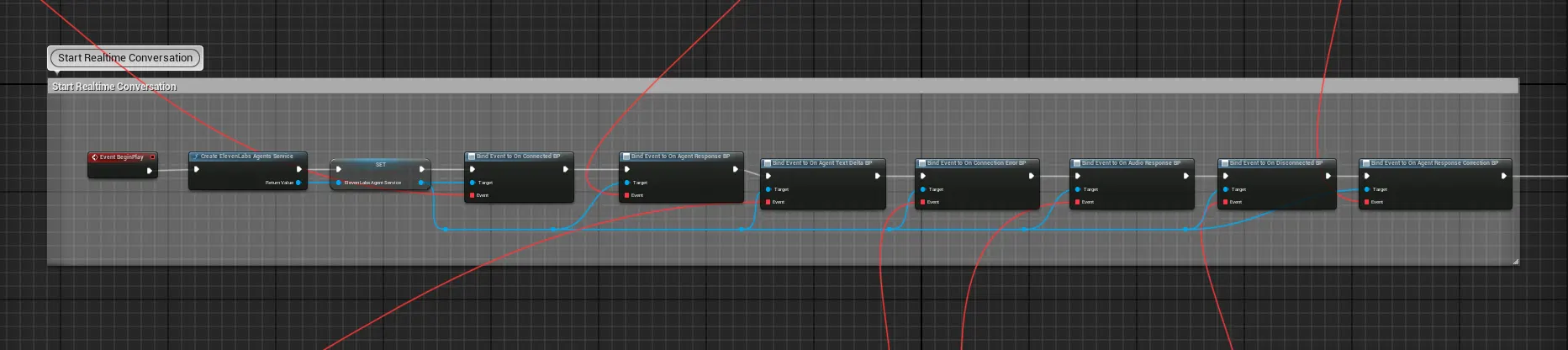
Binding to events. - Call Connect() with your Agent ID (and optional overrides)
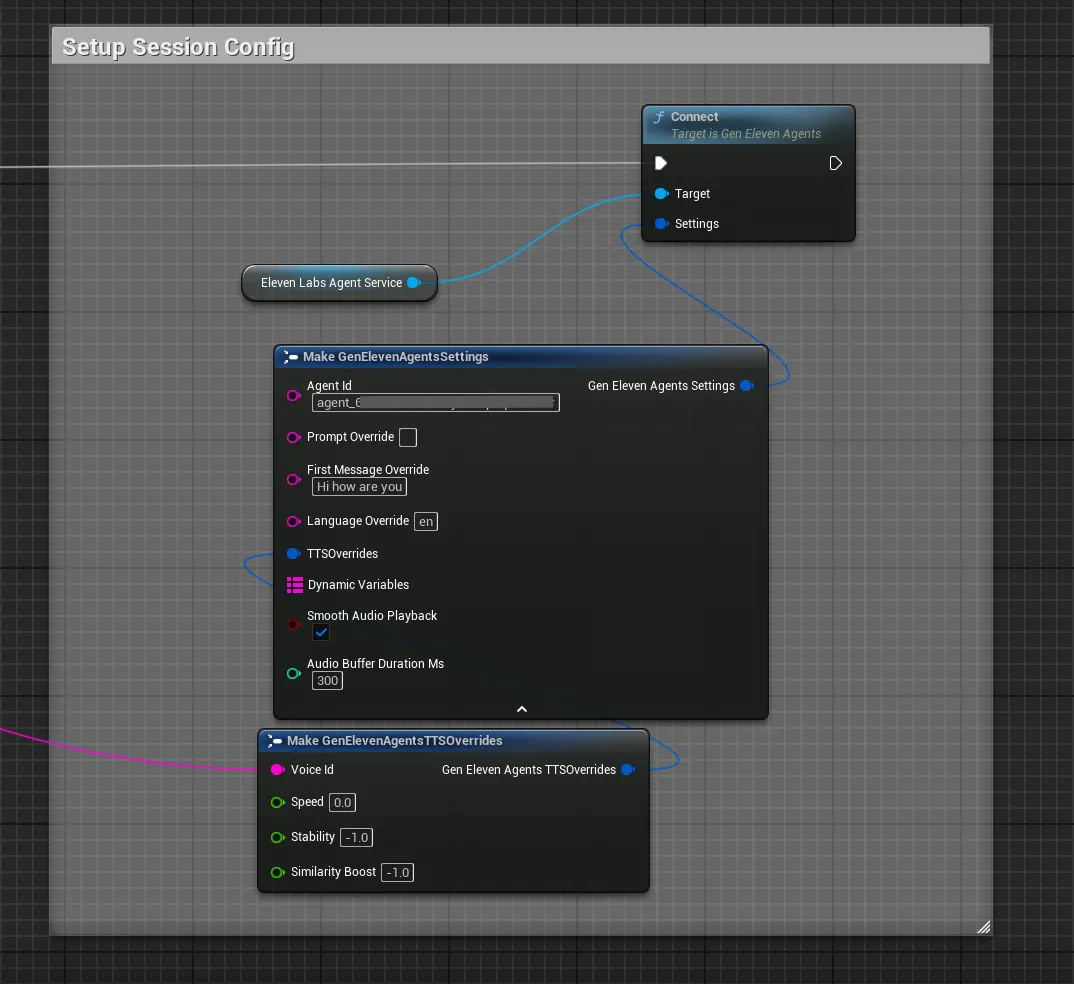
Start Connection. - On each frame/tick, call SendAudioToServer() with mic PCM16 data. K
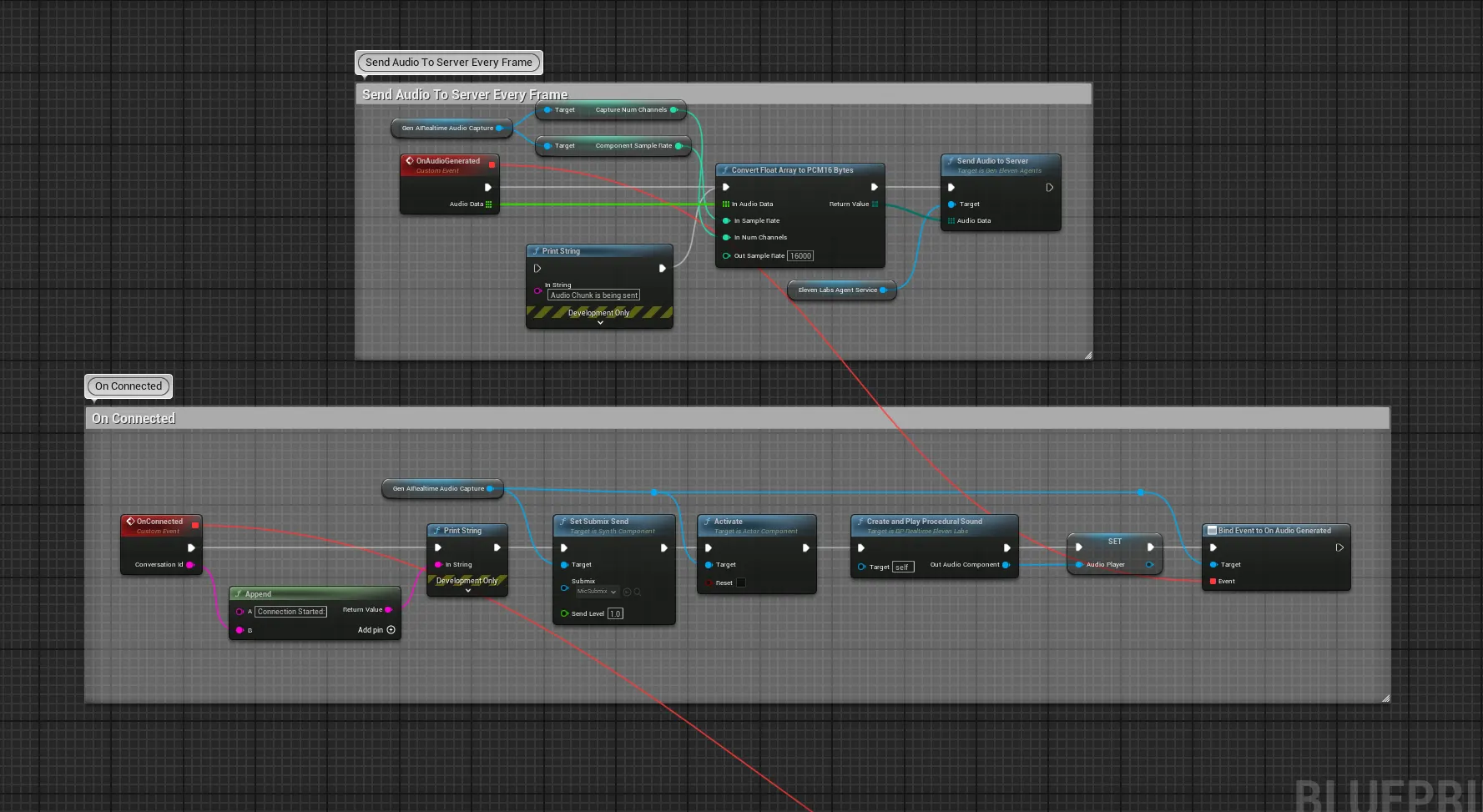
Send Audio packs to server - Handle OnAudioResponseBP to play incoming agent audio
- Handle
OnInterruptionBP— this is critical for barge-in to work correctly. When the user interrupts the agent, audio chunks that were already queued in your procedural sound wave will continue playing unless you flush them. On this event, callResetProceduralWaveon your procedural wave variable to instantly clear all buffered audio. Without this, the agent will appear to keep talking about the old topic even though the server has already moved on to the new response. - Call Disconnect() when done
Available Delegates
| Delegate | Description |
|---|---|
OnConnectedBP |
Fires when connected, provides the Conversation ID |
OnConnectionErrorBP |
Fires on connection failure with status code and error message |
OnDisconnectedBP |
Fires when the WebSocket closes |
OnAudioResponseBP |
Fires for each audio chunk from the agent (PCM16 mono 16 kHz) |
OnUserTranscriptBP |
Fires when the user’s speech is transcribed |
OnAgentResponseBP |
Fires when the agent’s full text response is available |
OnInterruptionBP |
Fires on barge-in — stop audio playback on this event |
OnVadScoreBP |
Fires with VAD score (0.0 - 1.0) |
OnAgentResponseCorrectionBP |
Fires when the agent corrects a previous response |
OnAgentTextDeltaBP |
Fires with streaming text deltas as the agent generates |
OnToolCallBP |
Fires when the agent requests a client-side tool call |
Available Methods
| Method | Description |
|---|---|
Connect(Settings) |
Connect to the agent with the given settings |
Disconnect() |
Gracefully close the connection |
SendAudioToServer(AudioData) |
Stream PCM16 mono 16 kHz audio to the agent |
SendTextToServer(Text) |
Send a text message instead of voice |
SendContextualUpdate(Text) |
Send a non-interrupting contextual update |
SendToolResult(ToolCallId, Result, bIsError) |
Return the result of a client-side tool call |
Audio Format
ElevenLabs Conversational AI streams audio as raw PCM 16-bit signed little-endian, mono, at 16 kHz in both directions.
- Playback: Use
CreateEmptyProceduralWavewithSampleRate = 16000, then feedOnAudioResponseBPdata into it viaQueueAudioToProceduralWave. Using the default 24000 will cause chipmunk-sounding audio. - Mic Input: Use
ConvertFloatArrayToPCM16ByteswithOutSampleRate = 16000to convert your microphone audio before sending it withSendAudioToServer. - Click Prevention: By default,
bSmoothAudioPlaybackis enabled. This applies an initial audio buffer at the start of each agent response and coalesces small ongoing chunks (minimum 50ms per broadcast) to prevent underrun clicks between WebSocket messages. The initial buffer duration is controlled byAudioBufferDurationMs(default 300ms). Increase this if you still hear clicks at the start of responses; decrease it to reduce initial latency. If you are building a custom audio pipeline and want raw, unprocessed chunks, setbSmoothAudioPlayback = falsein the settings.
C++ Implementation
#include "Models/ElevenLabs/GenElevenAgents.h"
#include "Data/ElevenLabs/GenElevenAgentsStructs.h"

void AMyActor::StartElevenLabsConversation()
{
    // 1. Create the service
    AgentsService = UGenElevenAgents::CreateElevenAgentsService(this);

    // 2. Bind C++ delegates
    AgentsService->OnConnected.AddLambda([](const FString& ConversationId)
    {
        UE_LOG(LogTemp, Log, TEXT("Connected! ConversationId: %s"), *ConversationId);
    });

    AgentsService->OnAudioResponse.AddLambda([this](const TArray<uint8>& AudioData)
    {
        // Queue audio data to your procedural sound wave for playback
    });

    AgentsService->OnUserTranscript.AddLambda([](const FString& Transcript)
    {
        UE_LOG(LogTemp, Log, TEXT("User said: %s"), *Transcript);
    });

    AgentsService->OnAgentResponse.AddLambda([](const FString& Response)
    {
        UE_LOG(LogTemp, Log, TEXT("Agent said: %s"), *Response);
    });

    // Handle interruption — flush queued audio so the old response stops immediately
    AgentsService->OnInterruptionBP.AddDynamic(this, &AMyActor::OnInterruption);
    // In OnInterruption(): Stop audio component, recreate procedural wave, restart playback

    // 3. Configure and connect
    FGenElevenAgentsSettings Settings;
    Settings.AgentId = TEXT("your-agent-id-here");

    // Optional overrides:
    Settings.PromptOverride = TEXT("You are a friendly NPC shopkeeper.");
    Settings.FirstMessageOverride = TEXT("Welcome to my shop! What can I help you with?");
    Settings.TTSOverrides.Speed = 1.0f;
    Settings.DynamicVariables.Add(TEXT("player_name"), TEXT("Hero"));

    AgentsService->Connect(Settings);
}

// Call this every frame with mic data
void AMyActor::SendMicAudio(const TArray<uint8>& PCM16Data)
{
    if (AgentsService)
    {
        AgentsService->SendAudioToServer(PCM16Data);
    }
}
Settings Reference (FGenElevenAgentsSettings)
| Property | Type | Description |
|---|---|---|
AgentId |
FString |
The Agent ID from your ElevenLabs dashboard (required) |
PromptOverride |
FString |
Override the agent’s system prompt for this conversation |
FirstMessageOverride |
FString |
Override the first message the agent speaks |
LanguageOverride |
FString |
Override language (e.g. “en”, “es”, “fr”) |
TTSOverrides |
FGenElevenAgentsTTSOverrides |
Voice, speed, stability, and similarity boost overrides |
DynamicVariables |
TMap<FString, FString> |
Key-value pairs injected into the agent’s prompt template |
bSmoothAudioPlayback |
bool |
When true (default), applies an initial buffer and micro-fade at chunk boundaries to prevent click/tick artifacts. Set to false for raw, unprocessed audio chunks. |
AudioBufferDurationMs |
int32 |
Initial audio buffer duration in milliseconds before playback starts per response (default 300, range 50–1000). Higher values reduce clicks but add latency. Only used when bSmoothAudioPlayback is true. |