OpenAI Compatible Mode
OpenAI Compatible Mode allows you to seamlessly switch all OpenAI-related API calls (chat completions, real-time conversations, text-to-speech, image generation, and more) to use a different API key and endpoint. This feature is particularly useful for routing requests to local LLMs, self-hosted models, or other OpenAI-compatible providers without modifying your game code.
1. Setting Up the OpenAI Compatible API Key
Before enabling the mode, you need to configure the API key for the compatible provider.
- In the Unreal Editor, navigate to Edit > Project Settings.
- Scroll down to the Plugins section on the left and click on GenAI Plugin.
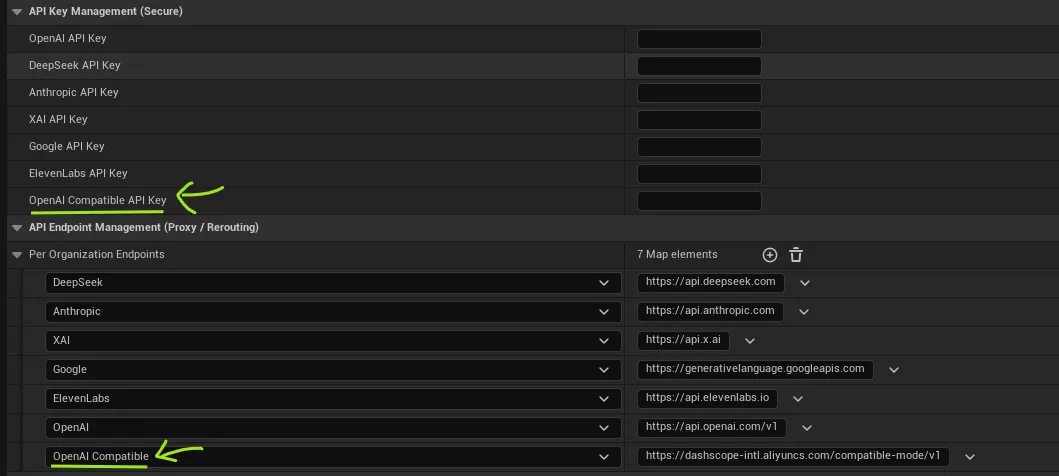
- Locate the OpenAI Compatible section and enter your API key in the corresponding field.
- Configure the custom endpoint if your provider uses a different base URL than the standard OpenAI API. In the example above we have picked Alibaba’s Qwen.
Note: The OpenAI Compatible key is stored securely using the same encryption as other API keys in
YourProject/Saved/Config/GenAI/secureconfig.bin.
2. Enabling and Disabling OpenAI Compatible Mode
Use the provided Blueprint nodes to control when OpenAI Compatible Mode is active. When enabled, all requests that would normally target OpenAI (such as chat completions, image generation, TTS, etc.) will automatically use the OpenAI Compatible API key and endpoint instead.
Blueprint Usage
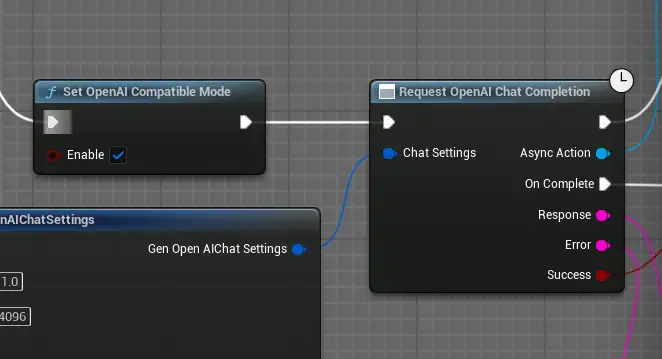
- Set OpenAI Compatible Mode: Call this node with
bEnableset totrueto activate the mode, orfalseto disable it and revert to standard OpenAI settings. - Is OpenAI Compatible Mode Enabled: Use this node to check the current state of the mode.
Example: Toggling Between Providers
// Pseudo-code for Blueprint
BeginPlay:
    If PlayerPrefersLocalLLM:
        Set OpenAI Compatible Mode (Enable: true)
    Else:
        Set OpenAI Compatible Mode (Enable: false)

// Later in game:
Request OpenAI Chat Completion (Messages, Settings, OnResponse)
    // This will use OpenAI Compatible key if mode is enabled
3. Supported Providers and Models
OpenAI Compatible Mode supports a wide range of providers, from hosted cloud services to local models running on your machine. This allows for incredible flexibility, cost savings, and privacy. Below is a list of tested and supported providers, including setup instructions and example models.
Alibaba Qwen
Alibaba’s Qwen series offers powerful multimodal models, including vision-language models for image understanding and generation.
- Endpoint:
https://dashscope-intl.aliyuncs.com/compatible-mode/v1 - API Key: Obtain from Alibaba Cloud Model Studio.
- Example Models:
qvq-max,qvq-max-latest,qwen-vl-max,qwen-vl-plus,qwen2.5-vl-72b-instruct,qwen2.5-vl-32b-instruct,qwen2.5-vl-7b-instruct,qwen2.5-vl-3b-instruct. - More Info: Qwen VL Documentation.
Ollama (Local Models)
Run AI models locally on your machine for maximum privacy and offline capability. Perfect for development and testing.
- Endpoint:
http://localhost:11434/v1 - API Key: Not required (local).
- Setup: Install Ollama from ollama.com, then pull models with
ollama pull <model-name>. - Example Models:
gemma3:1b,nemotron-3-nano,gpt-oss,llama3.1,phi3(Phi-3 family by Microsoft),llama3.2. - Note: Local models can be very large (GBs) and may impact game performance. Not recommended for customer-facing products.
- More Info: Ollama OpenAI Compatibility.
Mistral AI
Mistral offers fast, efficient models with strong reasoning capabilities.
- Endpoint:
https://api.mistral.ai/v1 - API Key: Get from Mistral Admin.
- Example Models:
mistral-large-2512,mistral-medium-2508,mistral-small-2506,ministral-14b-2512,ministral-8b-2512,ministral-3b-2512,magistral-medium-2509,magistral-small-2509. - More Info: Mistral Completion API.
Groq
Groq provides ultra-fast inference using their custom hardware.
- Endpoint:
https://api.groq.com/openai/v1 - API Key: Obtain from Groq Console.
- Example Models: Various Groq-optimized models (check their docs for current list).
- More Info: Groq Overview.
OpenRouter
A unified API for accessing multiple AI providers through a single interface.
- Endpoint:
https://openrouter.ai/api/v1 - API Key: Get from OpenRouter.
- Example Models: Access to hundreds of models from various providers.
- More Info: OpenRouter Quickstart.
Meta Llama
Meta’s open-source Llama models, hosted via their API.
- Endpoint:
https://api.llama.com/compat/v1 - API Key: Obtain from Meta Llama Developer.
- Example Models: Various Llama versions (check their docs).
- More Info: Llama Compatibility.
BigModel GLM-4
Chinese AI provider offering GLM-4 models with strong multilingual capabilities.
- Endpoint:
https://open.bigmodel.cn/api/paas/v4 - API Key: Get from BigModel.
- Example Models:
glm-4and variants. - More Info: BigModel OpenAI SDK.
4. How It Works Internally
When OpenAI Compatible Mode is enabled:
- All OpenAI API calls are routed through the
OpenAICompatibleprovider settings. - The plugin automatically selects the appropriate API key based on the current mode.
- No changes to your existing Blueprints or C++ code are required.
- You can switch modes at runtime without restarting the game.
Affected Features
The following OpenAI features are redirected when the mode is enabled:
- Chat Completions (standard and streaming)
- Real-time Conversational AI
- Text-to-Speech (TTS)
- Speech-to-Text (Transcription)
- Image Generation and Editing
- Any other OpenAI-based API calls
C++ Implementation Details
For developers working in C++, the mode is managed through static functions in UGenUtils:
// Enable the mode
UGenUtils::SetOpenAICompatibleMode(true);

// Check if enabled
bool bIsEnabled = UGenUtils::IsOpenAICompatibleModeEnabled();

// The API key retrieval automatically handles the mode
FString ApiKey = UGenSecureKey::GetGenerativeAIApiKey(EGenAIOrgs::OpenAI);
// This returns the OpenAI Compatible key if mode is enabled
5. Use Cases
Local LLM Development
During development, you can run a local OpenAI-compatible server (like Ollama or LM Studio) and use this mode to test your game with local models without changing any code.
Provider Switching
Easily switch between different OpenAI-compatible providers (like Together AI, OpenRouter, or custom deployments) by updating the API key and endpoint in settings.
Fallback Mechanisms
Implement fallback logic where you can switch to a compatible provider if the primary OpenAI service is unavailable.
6. Best Practices
- Test Thoroughly: Always test your game with both modes enabled and disabled to ensure compatibility.
- Secure Storage: Treat your OpenAI Compatible API key with the same security as your primary keys.
- Endpoint Configuration: If using a custom endpoint, ensure it’s properly formatted (e.g.,
https://api.example.com/v1). - Runtime Switching: You can enable/disable the mode at runtime, allowing players to choose their preferred provider in-game.
Troubleshooting
Q: My requests are still using the standard OpenAI key even when the mode is enabled.
A: Ensure you’ve entered a valid API key in the “OpenAI Compatible” field in settings. Also, verify that the mode is actually enabled by checking Is OpenAI Compatible Mode Enabled.
Q: The custom endpoint isn’t working. A: Check that the endpoint URL is correct and accessible. Some providers may require specific URL formats or additional headers.
Q: Can I use this for non-OpenAI compatible providers? A: This mode is specifically for OpenAI-compatible APIs. For other providers, use their dedicated settings and nodes.