Streaming (Text and Audio)
Streaming is a powerful feature that allows you to receive AI responses in real-time, word-by-word, as they are generated. This creates a much more interactive and engaging user experience, similar to the typewriter effect seen in ChatGPT.
Currently Supported Providers
Text Streaming:
- OpenAI
- XAI
- DeepSeek
Audio Streaming:
- OpenAI
- ElevenLabs
Version support:
Please note Audio Streaming only works on plugin versions above v1.5.1.
How It Works
Without streaming, you send a request and wait for the entire response to be generated before it’s sent back. This can lead to noticeable delays, especially for longer responses.
With streaming, the connection to the AI provider remains open. The server sends back small chunks of data (called “deltas”) as soon as they are generated. The new example projects include a chat widget that fully demonstrates a real-world implementation of streaming.
Blueprint Implementation
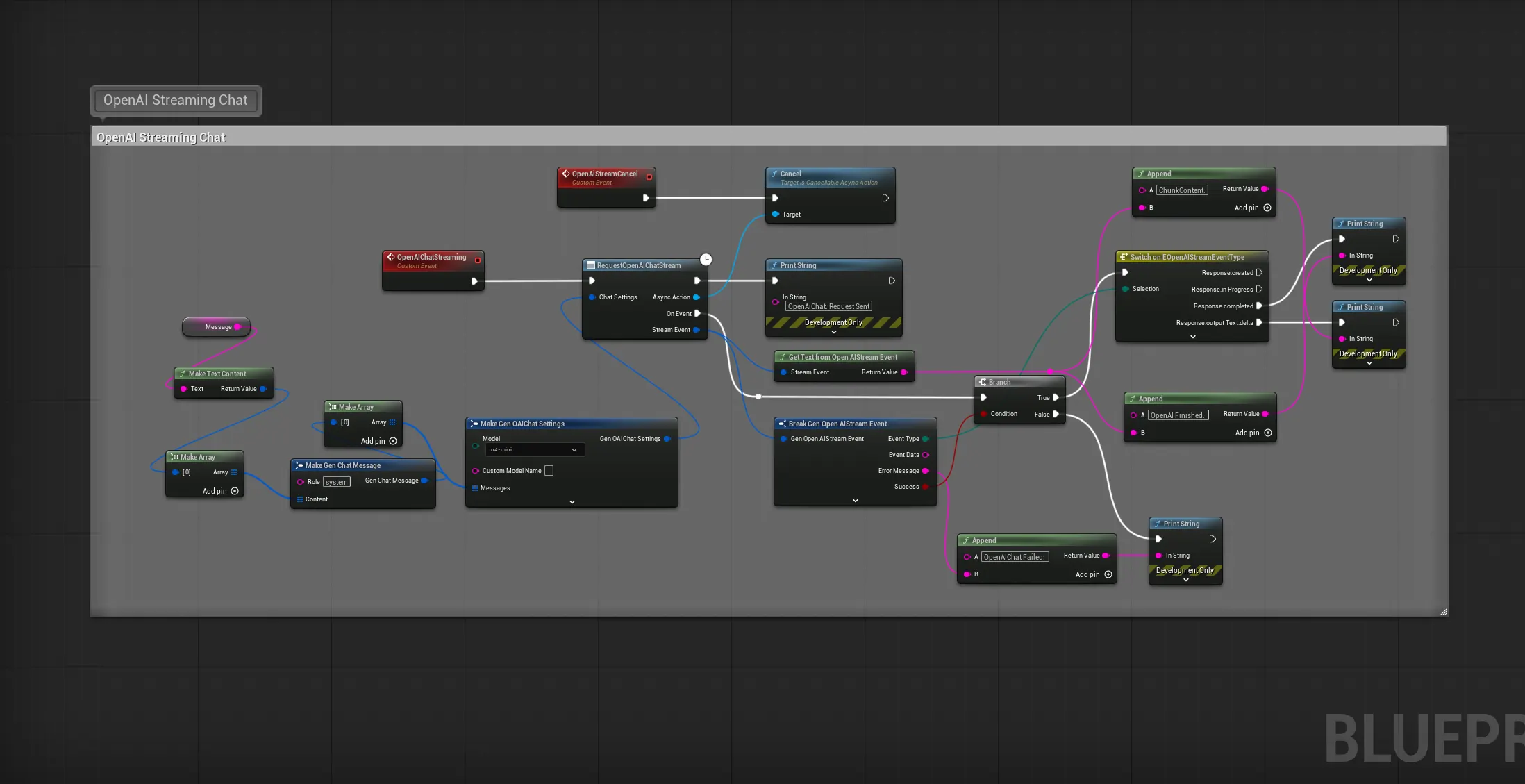
The Blueprint implementation is handled by dedicated latent nodes that manage the streaming connection for you. Following is a text streaming implmentation, for audio streaming examples please refer to the example project.
- Find the “Request… Stream” node for your chosen provider (e.g.,
Request OpenAI Chat Stream). - Provide the necessary
SettingsandMessages, just like a standard request. - The node exposes several event pins to handle the streaming lifecycle:
- On Stream Update OR On Audio Delat/Chunk: This event fires for every chunk of text/audio received from the server. Use this to append the
Deltacontent to your UI. - On Complete: This fires once the stream has successfully finished. The
Full Responsepin provides the entire concatenated message. - On Error: This fires if a network error or API error occurs during the stream.
- On Stream Update OR On Audio Delat/Chunk: This event fires for every chunk of text/audio received from the server. Use this to append the
C++ Implementation
The C++ implementation offers more fine-grained control and follows a similar event-driven pattern. You use the static SendStreamChatRequest function from the relevant provider’s stream class.
This function requires a callback delegate that will be invoked for every event in the stream’s lifecycle (update, completion, error).
// In your header file (e.g., AMyStreamingActor.h)
#pragma once

#include "CoreMinimal.h"
#include "GameFramework/Actor.h"
#include "Models/OpenAI/GenOAIChatStream.h" // Include the stream class
#include "AMyStreamingActor.generated.h"

UCLASS()
class YOURGAME_API AMyStreamingActor : public AActor
{
    GENERATED_BODY()

public:
    UFUNCTION(BlueprintCallable)
    void SendStreamingRequest(const FString& Prompt);

private:
    // This function will handle all events from the stream
    void OnStreamingEvent(const FGenOpenAIStreamEvent& StreamEvent);

    // Store the active request to allow for cancellation
    TSharedPtr<IHttpRequest> ActiveStreamingRequest;
};

// In your source file (e.g., AMyStreamingActor.cpp)
#include "Data/OpenAI/GenOAIChatStructs.h"

void AMyStreamingActor::SendStreamingRequest(const FString& Prompt)
{
    FGenOAIChatSettings ChatSettings;
    ChatSettings.Model = EOpenAIChatModel::GPT_4o;
    ChatSettings.Messages.Add(FGenChatMessage{EGenChatRole::User, Prompt});
    ChatSettings.bStream = true; // This is technically redundant but good for clarity

    // The SendStreamChatRequest function takes a single delegate that handles all event types.
    // It returns the request handle, which you should store for cancellation.
    ActiveStreamingRequest = UGenOAIChatStream::SendStreamChatRequest(
        ChatSettings,
        FOnOpenAIChatStreamResponse::CreateUObject(this, &AMyStreamingActor::OnStreamingEvent)
    );
}

void AMyStreamingActor::OnStreamingEvent(const FGenOpenAIStreamEvent& StreamEvent)
{
    if (!StreamEvent.bSuccess)
    {
        UE_LOG(LogTemp, Error, TEXT("Streaming Error: %s"), *StreamEvent.ErrorMessage);
        ActiveStreamingRequest.Reset(); // Clean up on error
        return;
    }

    switch (StreamEvent.EventType)
    {
        case EOpenAIStreamEventType::ResponseOutputTextDelta:
            // This is a new chunk of text. Append it to your UI.
            UE_LOG(LogTemp, Log, TEXT("Delta: %s"), *StreamEvent.DeltaContent);
            // MyUITextBlock->SetText(MyUITextBlock->GetText().ToString() + StreamEvent.DeltaContent);
            break;

        case EOpenAIStreamEventType::ResponseCompleted:
            // The stream has finished successfully.
            UE_LOG(LogTemp, Log, TEXT("Stream Complete! Final Message: %s"), *StreamEvent.FullResponse);
            ActiveStreamingRequest.Reset(); // Clean up the request handle
            break;
    }
}

// Don't forget to cancel the request if the actor is destroyed!
void AMyStreamingActor::EndPlay(const EEndPlayReason::Type EndPlayReason)
{
    if (ActiveStreamingRequest.IsValid() && ActiveStreamingRequest->GetStatus() == EHttpRequestStatus::Processing)
    {
        ActiveStreamingRequest->CancelRequest();
    }
    ActiveStreamingRequest.Reset();
    Super::EndPlay(EndPlayReason);
}
Best Practices
- UI Performance: Appending text to a UMG
UTextBlockevery frame can be inefficient. For very fast streams, consider buffering the deltas and updating the UI at a fixed interval (e.g., every 0.1 seconds) for smoother performance. - Graceful Cancellation: Always give the user a way to cancel a long streaming response. Store the
IHttpRequesthandle (as shown in the C++ example) and callCancelRequest()when needed. - Error Handling: Network connections can be unreliable. Always implement logic in your
OnErroror!bSuccesspaths to inform the user that the stream failed and allow them to retry. - Buffer and Reconstruct: The
OnStreamUpdateevent gives you the rawDelta. You should maintain a separateFStringvariable to accumulate these deltas. This gives you the complete message-so-far at any point during the stream.