Image Generation & Editing
Integrate powerful AI image generation and editing directly into your Unreal Engine projects. This feature allows you to create and modify high-quality visual assets from simple text prompts, opening up incredible possibilities for procedural content, rapid prototyping, and dynamic in-game experiences.
Currently Supported Providers:
Image Generation:
- OpenAI (standalone + inline via Responses API)
Image Edit:
1. Image Generation
Image generation allows you to create entirely new images from a text prompt.
- Supported Providers: OpenAI (
DALL-E 2,DALL-E 3,gpt-image-1), Google (Gemini,Imagen). - Use Cases: Generating concept art, dynamic in-game textures, player avatars, or placeholder assets.
- Find it in the Example Project: The new example project features a full UMG widget to test image generation.
2. Image Editing (New!)
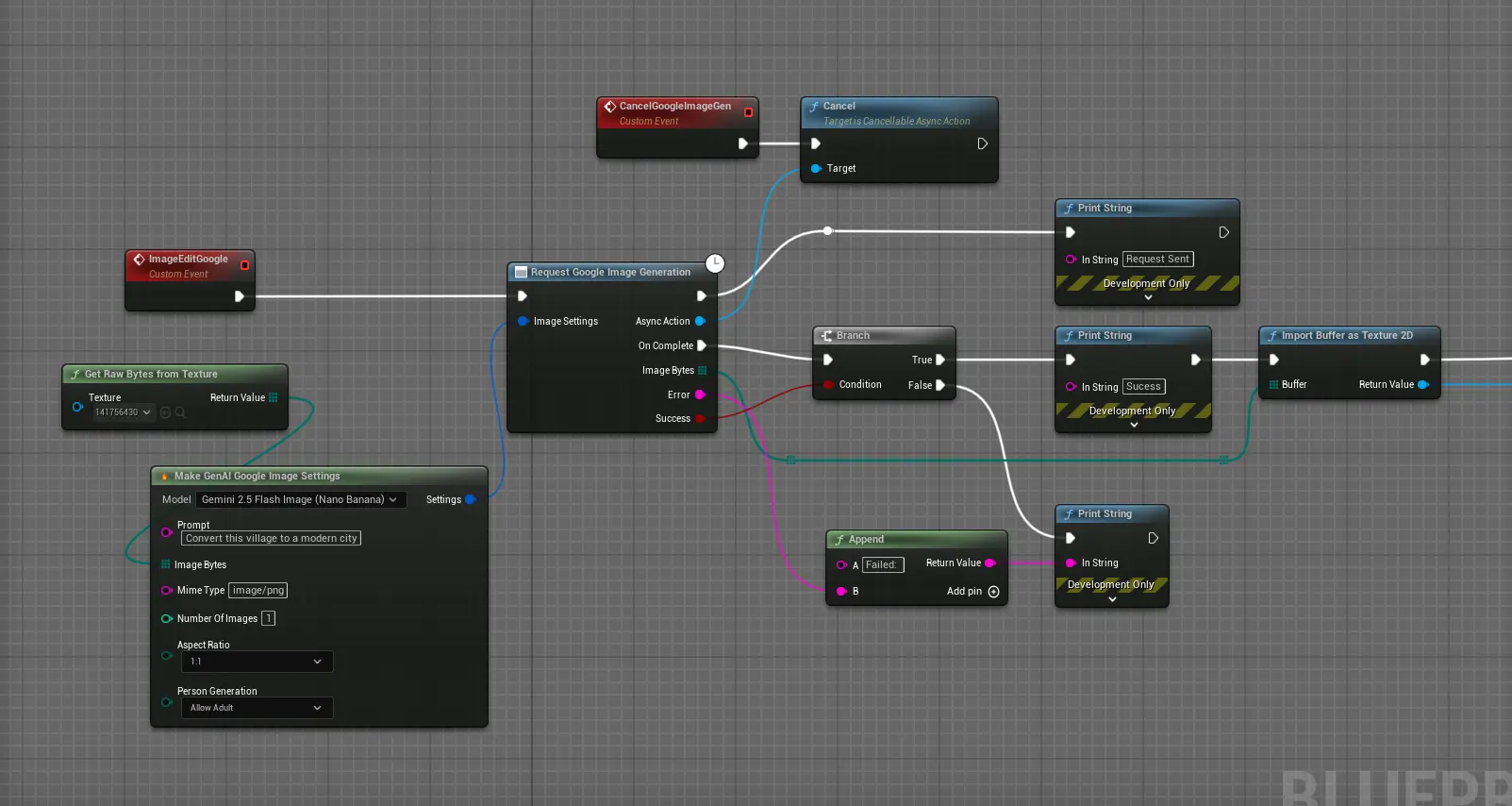
Image Editing is a powerful new feature that allows you to modify an existing image using an AI model. Instead of creating from scratch, you provide a source image and a text prompt describing the desired change.
How It Works
The process typically involves providing the source image data along with a prompt. The AI then intelligently alters the image to match the prompt. This is perfect for iterative design and dynamic, in-game visual effects.
Common Use Cases for Image Editing
- Iterative Design: Take a generated concept art image and refine it with prompts like “make the armor silver,” “change the art style to anime,” or “add a forest in the background.”
- Dynamic Environments: Change the appearance of in-game objects, such as making a statue look weathered over time or adding player-generated graffiti to a wall.
- Player Customization: Allow players to upload a portrait and have it stylized to fit the game’s art direction, or let them add custom decals to their vehicles.
C++ Examples Coming Soon
The Blueprint nodes and C++ functions for Image Editing are available in the latest plugin version. This section will be updated shortly with detailed code samples and a walkthrough from the example project.
3. Chat + Image Generation (Responses API)
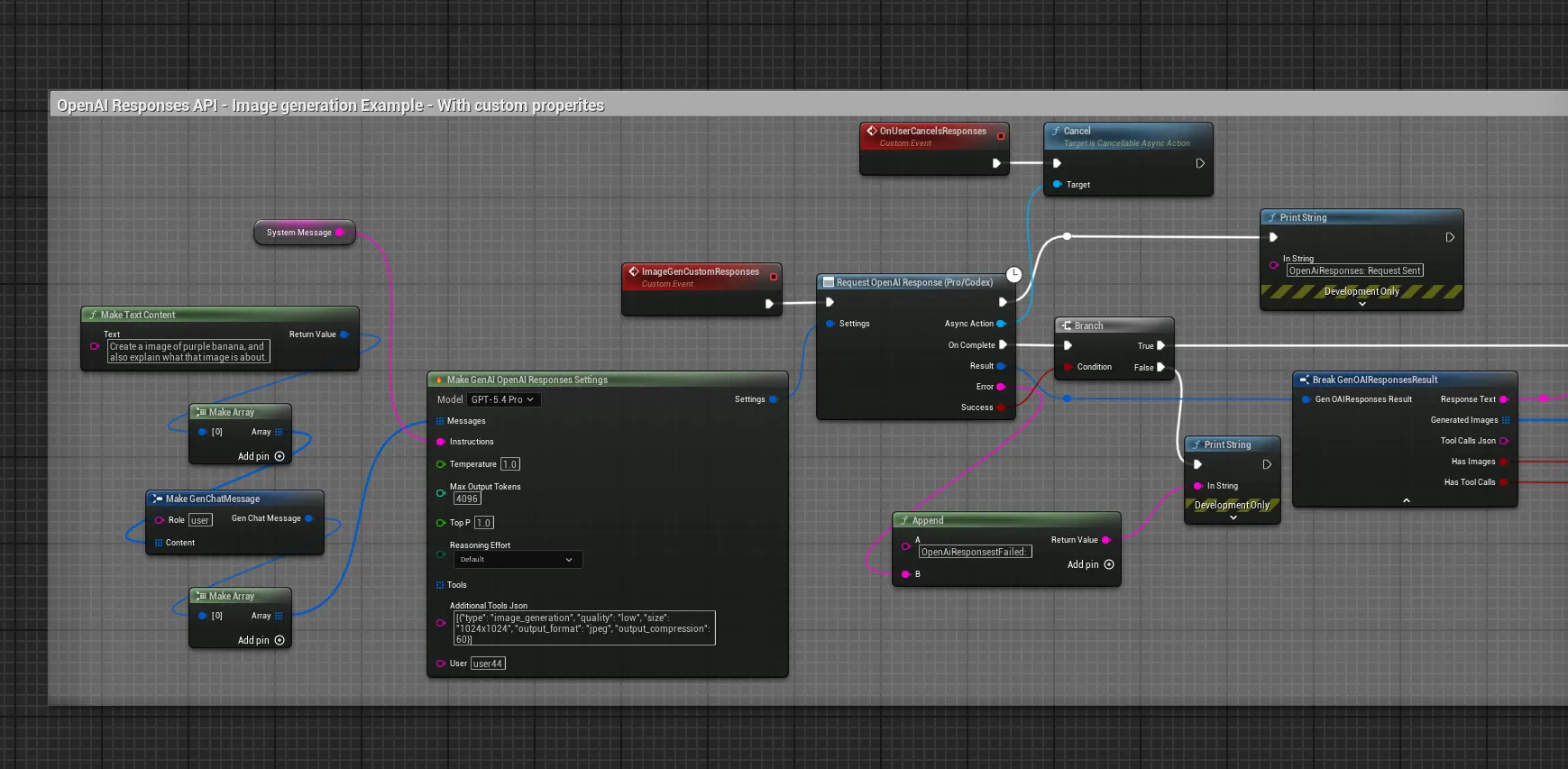
The OpenAI Responses API now supports generating images inline during a conversation. This means the AI can respond with both text and generated images in a single turn — just like ChatGPT’s image generation feature, but available directly in your Unreal Engine project.
- Supported Provider: OpenAI (via the Responses API with
gpt-image-1capable models) - Use Cases: A conversational AI that can generate concept art mid-conversation, an NPC that draws what the player describes, or an in-game design assistant that iterates on visual ideas through dialogue.
How It Works
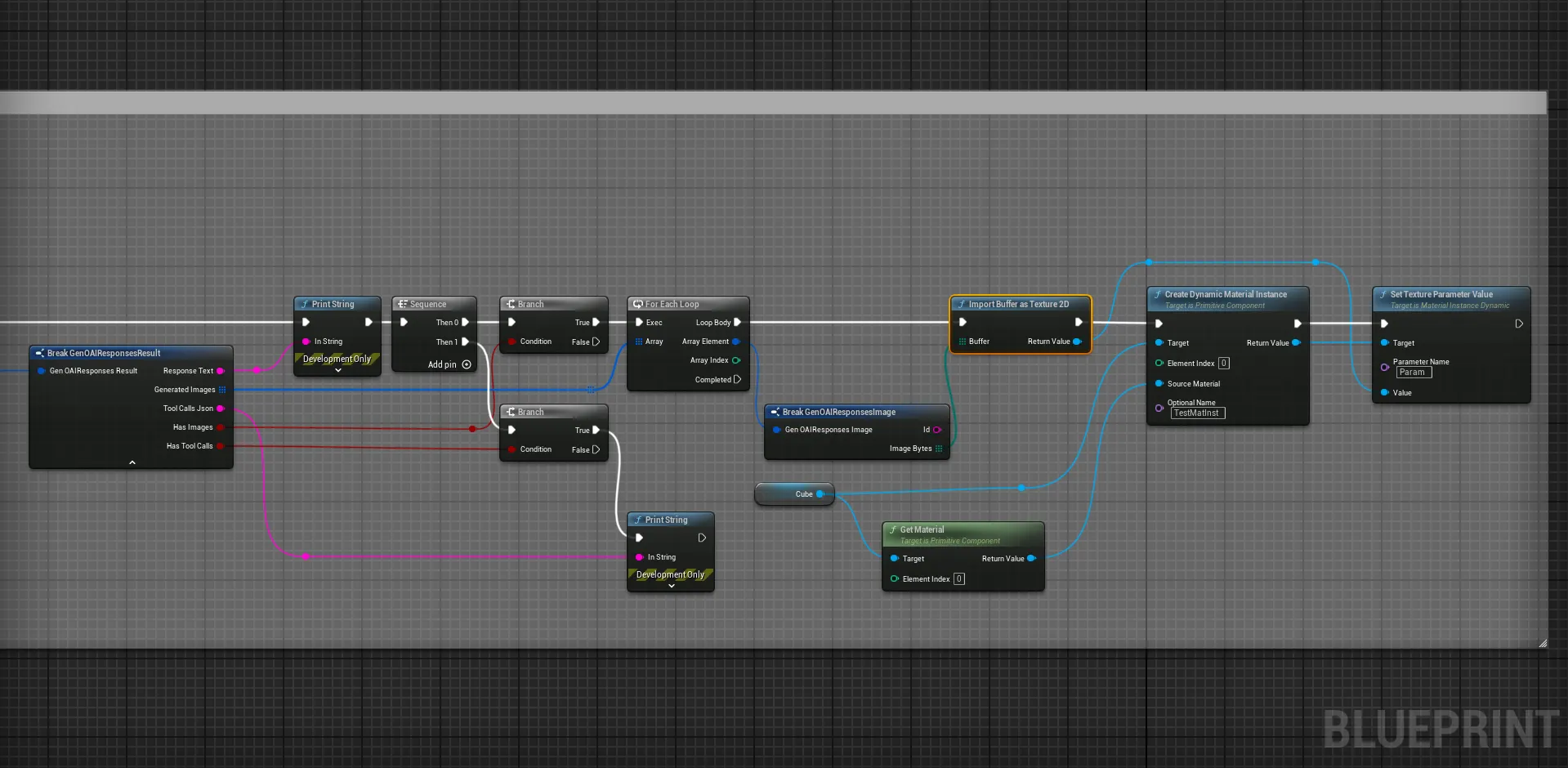
When you use the Responses API with a model that supports image generation, the AI may choose to generate an image as part of its response. The plugin automatically detects image_generation_call output items, decodes the Base64 image data, and packages everything into a single FGenOAIResponsesResult struct.
The Result Struct
The FGenOAIResponsesResult struct provides all output from a Responses API call:
| Property | Type | Description |
|---|---|---|
ResponseText |
FString |
The text portion of the AI’s response |
GeneratedImages |
TArray<FGenOAIResponsesImage> |
Array of generated images (each with Id and ImageBytes) |
ToolCallsJson |
FString |
Raw JSON of any tool calls the model made |
bHasImages |
bool |
true if the response contains generated images |
bHasToolCalls |
bool |
true if the response contains tool calls |
Blueprints Example
C++ Example
To enable inline image generation, you must pass [{"type": "image_generation"}] in the AdditionalToolsJson field. Without this, the model will not generate images even if prompted to do so.
#include "Models/OpenAI/GenOAIResponses.h"
#include "Data/OpenAI/GenOAIResponsesStructs.h"
#include "Misc/FileHelper.h"

void AMyActor::SendChatWithImageGeneration(const FString& UserMessage)
{
    FGenOpenAIResponsesSettings Settings;
    Settings.Model = TEXT("gpt-4o");
    Settings.Instructions = TEXT("You are a creative assistant that can generate images.");

    // Enable the image_generation built-in tool
    Settings.AdditionalToolsJson = TEXT("[{\"type\": \"image_generation\"}]");

    // Build the user message
    FGenChatMessage UserMsg;
    UserMsg.Role = TEXT("user");
    UserMsg.TextContent = UserMessage;
    Settings.Messages.Add(UserMsg);

    UGenOAIResponses::SendResponsesRequest(Settings,
        FOnResponsesCompletionResponse::CreateLambda(
            [](const FGenOAIResponsesResult& Result, const FString& Error, bool bSuccess)
        {
            if (!bSuccess) return;

            // Handle text response
            if (!Result.ResponseText.IsEmpty())
            {
                UE_LOG(LogTemp, Log, TEXT("AI: %s"), *Result.ResponseText);
            }

            // Handle generated images
            if (Result.bHasImages)
            {
                for (const auto& Image : Result.GeneratedImages)
                {
                    FFileHelper::SaveArrayToFile(Image.ImageBytes,
                        *FPaths::Combine(FPaths::ProjectSavedDir(), TEXT("AI"), Image.Id + TEXT(".png")));
                }
            }
        })
    );
}
Controlling Image Quality, Size, and Format
The image_generation tool accepts additional parameters to control the output. Pass them directly in the JSON:
| Parameter | Values | Default |
|---|---|---|
quality |
low, medium, high, auto |
auto |
size |
1024x1024, 1024x1536, 1536x1024, auto |
auto |
output_format |
png, webp, jpeg |
png |
output_compression |
0 - 100 (lower = smaller file) |
100 |
background |
transparent, opaque, auto |
auto |
partial_images |
0 - 3 (progressive previews) |
0 |
Examples for common use cases:
// Quick draft — low quality, compressed JPEG (fast, cheap)
Settings.AdditionalToolsJson = TEXT(R"([{"type": "image_generation", "quality": "low", "size": "1024x1024", "output_format": "jpeg", "output_compression": 60}])");

// High-res portrait — character art, vertical posters
Settings.AdditionalToolsJson = TEXT(R"([{"type": "image_generation", "quality": "high", "size": "1024x1536", "output_format": "png"}])");

// Wide landscape — environment concept art, loading screens
Settings.AdditionalToolsJson = TEXT(R"([{"type": "image_generation", "quality": "high", "size": "1536x1024"}])");

// Transparent background — UI icons, item sprites, overlays
Settings.AdditionalToolsJson = TEXT(R"([{"type": "image_generation", "quality": "medium", "size": "1024x1024", "background": "transparent", "output_format": "png"}])");

// WebP for smaller file sizes — good for thumbnails or web display
Settings.AdditionalToolsJson = TEXT(R"([{"type": "image_generation", "quality": "medium", "output_format": "webp", "output_compression": 80}])");
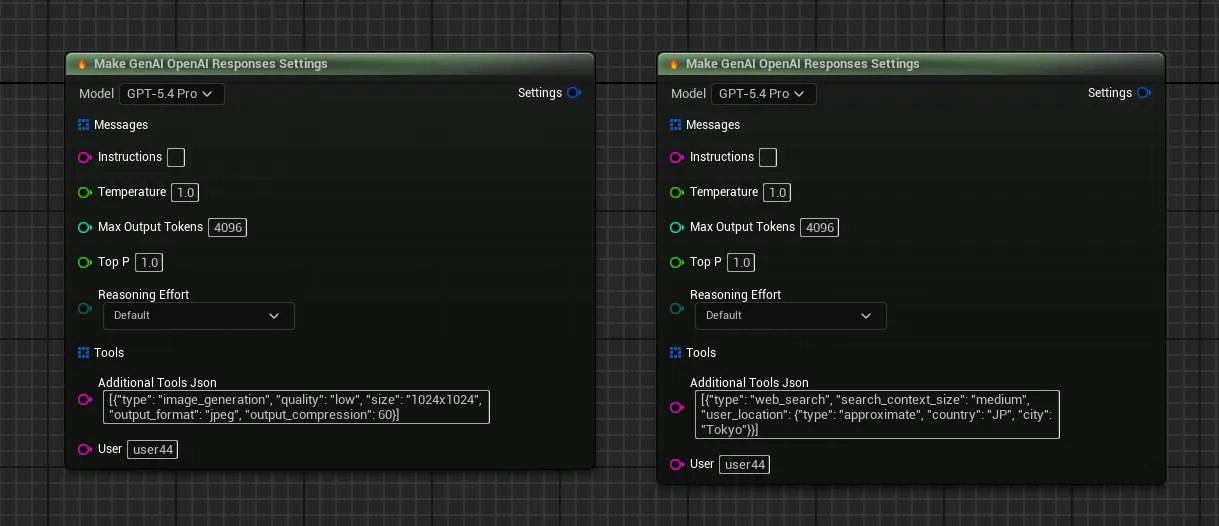
In Blueprints, enter the same JSON string in the Additional Tools Json field on the Make Gen OpenAI Responses Settings node.
Note
Image generation through the Responses API is different from the standalone Image Generation nodes. The Responses API allows the model to decide when to generate images based on the conversation context, while standalone image generation always creates an image from a direct prompt. For the full list of built-in tools (web search, code interpreter, etc.) and their configuration options, see the Chat Completions page.
C++ Implementation (Image Generation)
You can call the image generation functions directly from C++ for more control.
#include "Models/OpenAI/GenOAIImageGeneration.h"
#include "Data/OpenAI/GenOAIImageStructs.h"
#include "Misc/FileHelper.h"
#include "Misc/Paths.h"

void AMyImageGenerator::GenerateImageFromPrompt(const FString& PromptText)
{
    // 1. Configure the image generation settings
    FGenOAIImageSettings ImageSettings;
    ImageSettings.Prompt = PromptText;
    ImageSettings.Model = EGenOAIImageModel::GPT_Image_1;
    ImageSettings.Size = EGenAIImageSize::Size1024x1024;

    // 2. Send the request and handle the response in a Lambda
    UGenOAIImageGeneration::SendImageGenerationRequest(ImageSettings,
        FOnImageGenerationCompletionResponse::CreateLambda([this](const TArray<uint8>& ImageBytes, const FString& ErrorMessage, bool bSuccess)
        {
            if (bSuccess && ImageBytes.Num() > 0)
            {
                const FString FilePath = FPaths::ProjectSavedDir() / TEXT("AI") / FString::Printf(TEXT("GeneratedImage_%s.png"), *FDateTime::Now().ToString());
                FFileHelper::SaveArrayToFile(ImageBytes, *FilePath);
            }
        })
    );
}