Using LM Studio and OpenAI Compatible APIs in Unreal Engine 5
When you integrate AI into an Unreal Engine 5 project, the worst thing you can do is hardcode yourself to a single provider. If a cloud service goes down, raises their prices, or if you simply want to test features offline without spending money, you need the ability to reroute your API calls instantly.
This is where OpenAI Compatible Mode comes in. Because OpenAI's API structure has become the de facto industry standard, hundreds of other tools and providers—ranging from local desktop apps to massive enterprise cloud hosts—mimic its exact format.
What is OpenAI Compatible Mode?
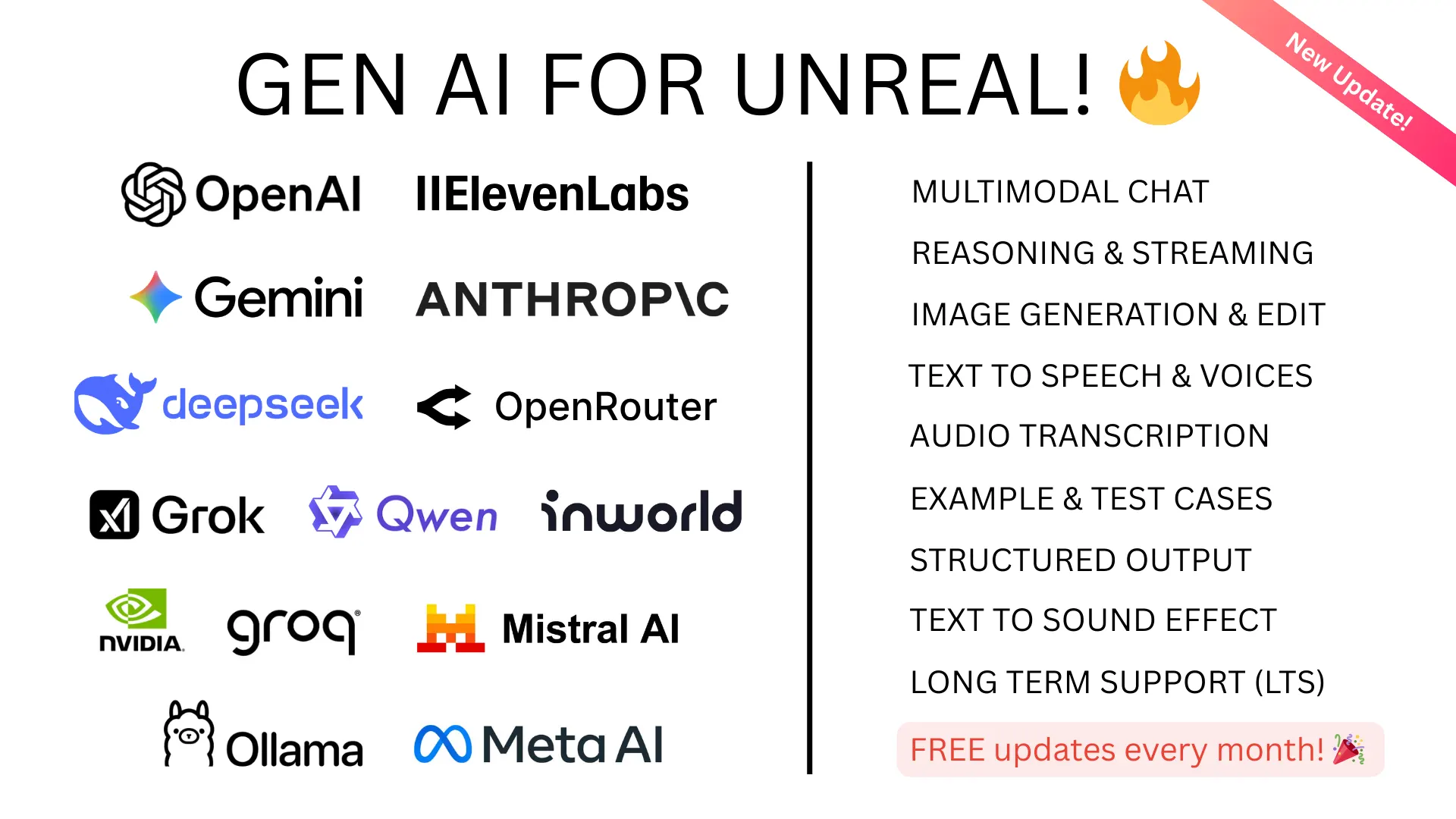
Built into the GenAI for Unreal plugin, OpenAI Compatible Mode acts as a global network switch. When enabled, any Blueprint node or C++ call meant for OpenAI (Chat Completions, Streaming, Image Generation, etc.) is intercepted. The plugin overrides the base URL and API key, routing the request to a custom endpoint of your choosing, without you needing to modify your underlying game logic.
Top Use Cases for Game Developers
1. Free Local Testing with LM Studio or Ollama
During development, making API calls to GPT-5.4 Pro every time you play-in-editor (PIE) costs money. By pointing the Compatible Mode to a local host, you can test your game's logic entirely for free.
- LM Studio: Start the local server in the app. Set your UE5 endpoint to http://localhost:1234/v1.
- Ollama: Set your UE5 endpoint to http://localhost:11434/v1.
Now, your "OpenAI" blueprint nodes will seamlessly talk to Llama 3 or Mistral running on your own GPU.
2. Aggregators (OpenRouter / Together AI)
If you want to use models that don't have dedicated Unreal Engine plugins, you can route your requests through aggregators. Set your endpoint to https://openrouter.ai/api/v1, drop in an OpenRouter API key, and you suddenly have access to 100+ open-source and proprietary models, all communicating through standard OpenAI formatted JSON.
3. High-Throughput Production (vLLM / LocalAI)
If you are hosting your own multiplayer backend, you might run your own inference servers using vLLM or LocalAI to handle thousands of concurrent players. Simply point your game clients (or your dedicated server) to your custom URL (e.g., https://ai.mygamestudio.com/v1).
How to Switch Providers at Runtime via Blueprints
You can give players the choice of which AI to use in your game's Settings Menu. Because the routing is dynamic, you can toggle it at runtime.
// Blueprint Pseudocode for Dynamic Routing
Event OnPlayerSelectedLocalAI()
  Set OpenAI Compatible Mode (bEnable: true)
  // Now all requests route to LM Studio / LocalHost

Event OnPlayerSelectedCloudAI()
  Set OpenAI Compatible Mode (bEnable: false)
  // Now all requests route back to actual OpenAI servers
C++ Implementation
If you're managing this in C++, you can toggle the routing state globally using the utilities class:
// Enable the proxy route
UGenUtils::SetOpenAICompatibleMode(true);

// Verify the state
bool bIsLocalMode = UGenUtils::IsOpenAICompatibleModeEnabled();
By decoupling your game's narrative logic from the actual API endpoint, you future-proof your Unreal Engine 5 project against the rapidly shifting AI landscape.