How to Use ChatGPT in Unreal Engine
If you're looking to bring ChatGPT into your Unreal Engine project, you're not alone. OpenAI's models are a natural fit for game development — from NPC dialogue to procedural quest generation to AI-powered game masters.
What Can You Actually Do?
The real question isn't whether you can use ChatGPT in Unreal — it's what you'll build with it. Here are some of the most compelling use cases we've seen developers ship:
- Dynamic NPC conversations that respond to player choices, world state, and past interactions — not scripted dialogue trees
- Procedural quest and lore generation at runtime, creating unique storylines every playthrough
- AI game directors that adapt difficulty, pacing, and narrative beats based on how the player is actually playing
- In-game assistants that help players with crafting systems, map navigation, or tutorial hints in natural language
The Integration Challenge
The hard part isn't calling the OpenAI API — it's doing it well inside a game engine. You need to handle asynchronous responses without blocking the game thread, manage conversation history for multi-turn dialogue, stream responses in real-time so characters feel alive, and do all of this across platforms.
Building this from scratch means writing HTTP clients, JSON parsers, async task managers, and audio pipelines. It's a lot of boilerplate before you even get to the fun part.
The Shortcut
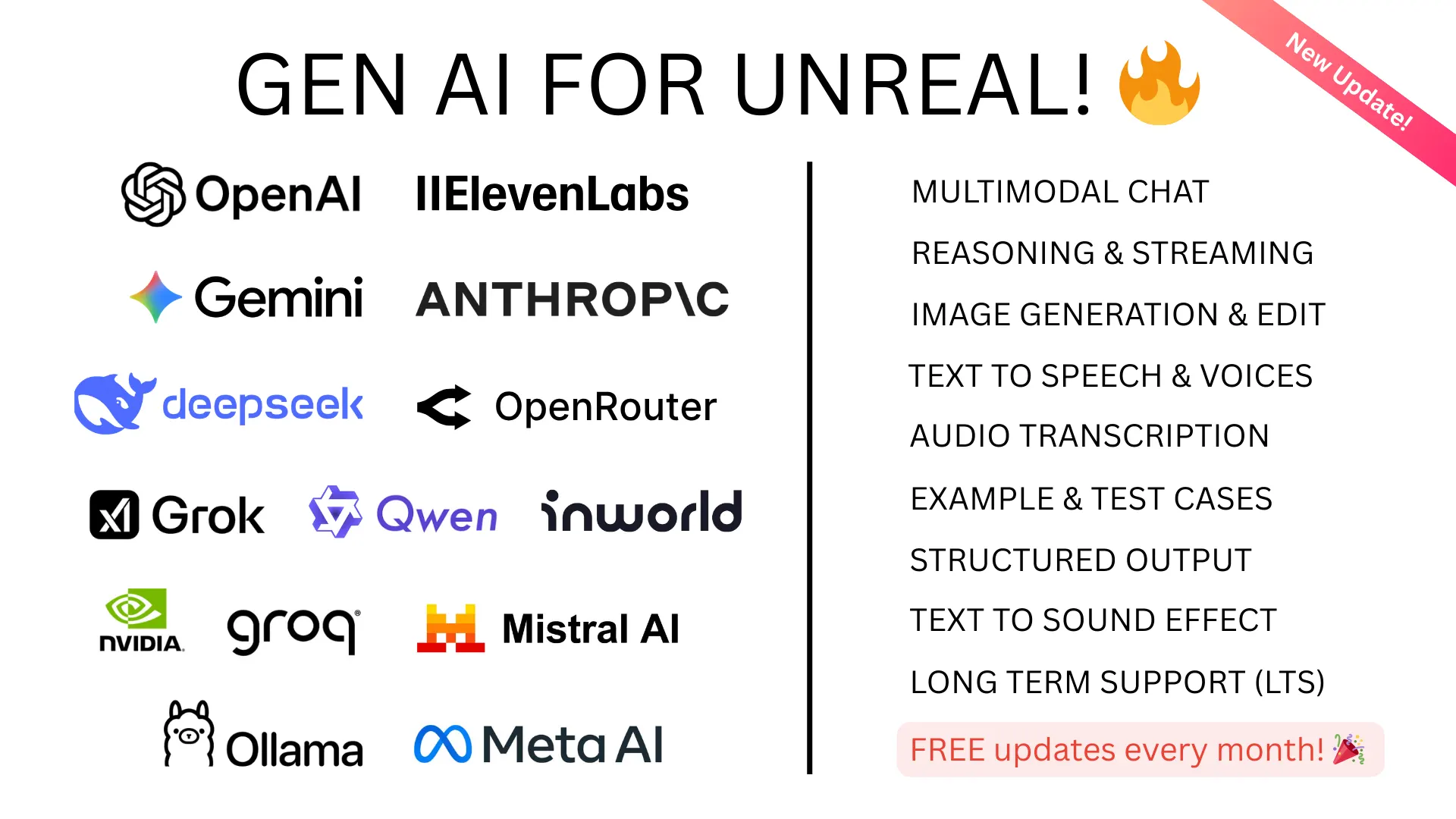
GenAI for Unreal handles all of this out of the box. It supports the full range of OpenAI models — GPT-4o, GPT-5, the reasoning models like o3 and o4-mini, plus DALL-E and TTS — with both Blueprint and C++ APIs. Streaming, structured JSON output, function calling, and multimodal input (text + images) all work without writing networking code.
It also supports Anthropic Claude, Google Gemini, DeepSeek, XAI Grok, and ElevenLabs, so you're not locked into one provider.
Getting Started
- Install the plugin from Fab marketplace
- Add your OpenAI API key in Project Settings
- Drop an async Blueprint node into your graph and you're making your first request in minutes
Check out the full documentation for walkthroughs, example projects, and best practices.